
How automatic deposits and withdrawals work, from tap to finance screen
When people talk about automatic deposits and withdrawals, most think of the player side, where the player taps and money arrives by itself. But for an operator, the question to answer first is what the back office sees, and what the finance team has to do. If you're planning a turnkey betting website, this page walks through the back-office side step by step, from an item popping up to closing it.
Contents
The real example player site of the EVOTEX brand says it has automatic deposits and withdrawals. That is a fact about the example brand only. Which deposit channels your brand has depends on each brand's own connections, so this article doesn't list channels, and it names no bank or payment provider.
Not for: individual players, and anyone looking for a guide to connecting a specific payment provider, because this article explains only the team's day-to-day work in the back office.
What automatic means from an operator's point of view
Automatic means the system does repetitive work in place of a person. For example, it picks up a transfer that came in and adds the credit, or it pays a withdrawal that meets the conditions. What's left for people is the items the system can't decide on its own, such as an amount that doesn't match, or a payment that didn't go through.
So the back office has to answer three things:
- Which items the system has handled, and which need a person
- Which account money moves through, and whether you can change the account yourself
- What ways there are to handle an item that is stuck or unusual
Labels used in this article: "can be tried in the demo" means you can use it in the demo with sample data. "sample" means there is a page to look at but the numbers are sample data. "designed, not in the demo" means it is laid out in a design but you can't press it in the demo yet.
How money flows, step by step, seen from the back office
This table picks up where the player presses a button on the player site and follows it to the screen the finance team sees. The player's side belongs to the brand's player site and isn't explained in this article.
| Step | Deposit side | Withdrawal side | What the finance team sees |
|---|---|---|---|
| 1 | A deposit arrives in the back office. In the demo there are items the player reported | The player requests a withdrawal and the item joins the withdrawal queue | A number badge on the Deposits and Withdrawals menus |
| 2 | If the brand has set up the connection, the system picks up the amount from the receiving account and adds the credit | If the brand has set up the connection, items that meet the conditions go the automatic payout route | The row shows a status of automatic or awaiting review |
| 3 | Items it can't pick up wait for a person to review, or for a manual top-up | Items that are stuck or need review wait for a person to decide | Filter to show only the items that need a person |
| 4 | Review, then approve, or cancel with a reason | Review, then approve or reject, or use one of the 12 ways to handle it | The result shows in the same row you pressed |
| 5 | If the bank's answer is unclear, the item stays open until it is closed | If a money order gets an unclear answer, the item stays open until it is closed | The page for money with an unknown result |
Where step 2 on the deposit side actually runs needs to be said plainly. The back office demo handles receiving accounts, the automatic flag, and the items that come in for the finance team to see. Picking up real amounts from the receiving account sits on the brand's connection side and isn't in the demo. Ask our team about this during setup.
The deposit side: what the finance team sees once an item arrives
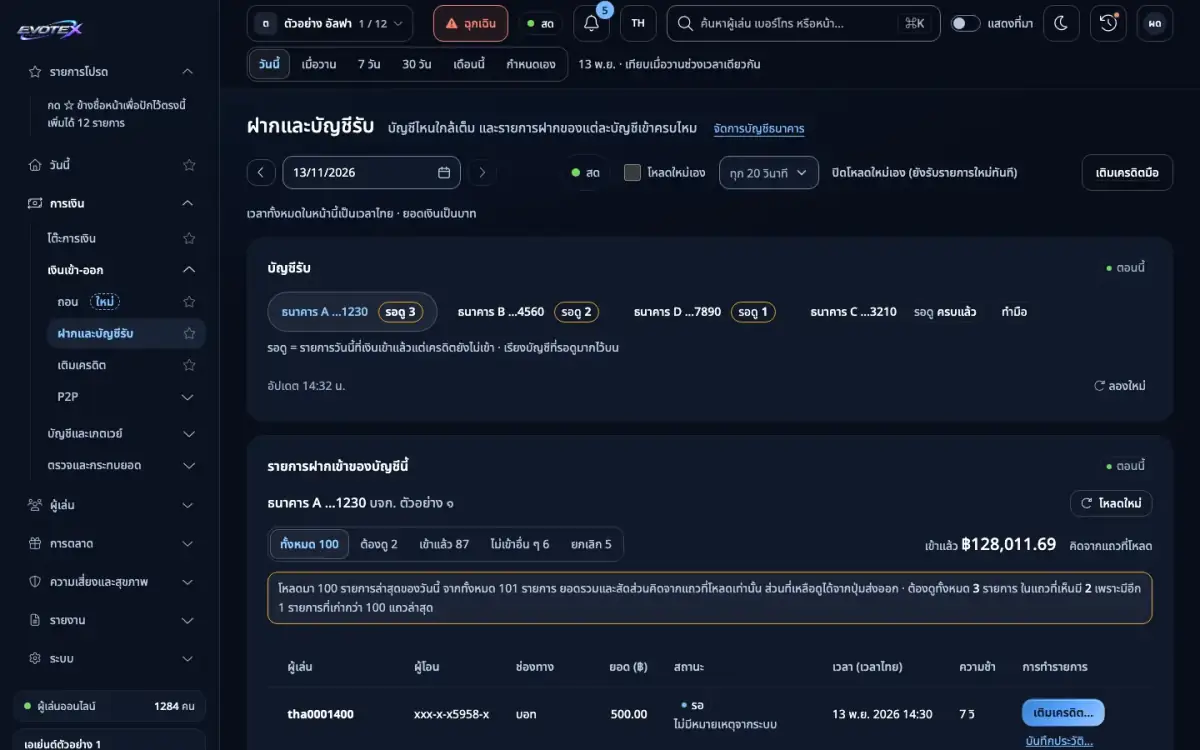
The Deposits page in the back office puts deposits on one page, with summary boxes by status and filter chips for automatic and manual top-up. You can sort by items to review first, newest, or highest amount (can be tried in the demo).
A row that needs review says why. For example, the transferred amount has odd cents, the system can't match it with the item the player reported, or the bank hasn't confirmed the item yet. So the finance team doesn't have to guess why something is stuck (sample in the demo).
What the finance team can do on this page:
- Review and approve items waiting for review
- Cancel an item, which requires a reason
- Cancel credit that was already added, or take it back and redo it
- Cancel or approve in a batch, when they are for the same receiving account and within 31 days
- Open the transfer slip to help with the review
Manual top-up: two steps, a reason, and a warning on repeats
Some items the system can't pick up, so the finance team has to add the credit for the player themselves. The back office makes this step hard to get wrong by splitting it in two.
- Step 1: choose the player, enter the amount, the time of the transfer, the promotion used, the receiving account, and a reason. There are four default reasons: the player transferred but the system didn't credit it, compensation for a system fault, a special promotion, and fixing a wrong amount. Or choose Other and write your own
- Step 2: look at the check result before you confirm, then enter your password and an OTP
If it is the same player, the same amount, and within 30 minutes of the last one, the system warns you and you have to tick a box to confirm it's a new item (can be tried in the demo). This prevents double top-ups when support and finance work separately.
The withdrawal side: from an item joining the queue to the result in the same row
The Withdrawals page puts waiting items on one page, split by status: ready, awaiting review, and claimed. Click a summary box to filter, switch between a table and cards, hide columns you don't use, and select everything that is ready and approve in a run (can be tried in the demo). In the demo, you can select up to 8 ready items in one round. The system sends the orders one by one and shows the result in each row.
Before approving, the finance team presses review to claim the item. Others will see that someone is holding it. To take it over, you have to tick a confirmation, and the system records the name of the person who took it. When you approve, the demo shows a confirmation box that asks for an OTP and says the money is sent right away. These steps are explained screen by screen in how the withdrawal queue works
The automatic part of the withdrawal side
According to the connection specification (API) the back office team wrote, an automatic withdrawal payout works in two beats. In the first beat, the server decides whether the item can be paid automatically and issues an item code. In the second beat, you use that code to order the payment. The amount is read from the server side, not from the number on the screen (designed, not in the demo. The screen is designed from this document, and connecting a real system is done at setup).
What you can try in the demo is the way out when an automatic payout doesn't go through, for example sending it again through another payout account, or telling the system to retry the automatic payout. The full list is in the next section.
When a withdrawal doesn't go through normally: 12 ways to handle it
The demo has an Exceptions tab that gathers 12 ways to handle a withdrawal with a problem. The finance team can handle them from one page. Each row in this tab says why it is stuck, for example the transfer provider reports that it failed, a partial payout left a balance, the transfer provider paid and is waiting for confirmation, or the automatic payout failed. There is a Handle exception button at the end of each row. The option names below are the names used in the demo. What "void as a rule breach" means depends on each brand's rules, so ask our team during setup.
| Way to handle it | Use when |
|---|---|
| Claim for review | You want this item to stay with one person, so two people don't repeat the work |
| Mark turnover as checked | You have finished checking the promotion's conditions |
| Reject | Not approving. You can choose whether to return the credit or not |
| Void as a rule breach, no refund | The team decides this item broke the rules, and no stake is refunded |
| Void as a rule breach, refund the stake | It broke the rules, but the stake is returned to the player |
| Approve a smaller payout | A partial payout. The remainder waits in the Exceptions tab |
| Recheck that the provider paid | The answer is unclear, and you need to confirm before doing anything else |
| Resend through another payout account | The original payout account can't pay |
| Transfer manually and close the balance | The team transferred the money by hand and has to close the item to match |
| Refund the remainder as credit | There is a remainder to return |
| Confirm the payment succeeded | You have checked that the money has gone out |
| Let the system retry the automatic payout | Try having the system pay once more on the same item |
One more thing to say in full: rejecting a withdrawal in the demo has no field for a reason. There is only the option of whether to return the credit. Your team should agree where to record the reason, and the demo doesn't yet have a button to release a claim you've taken.
When the bank's answer is unclear: money with an unknown result
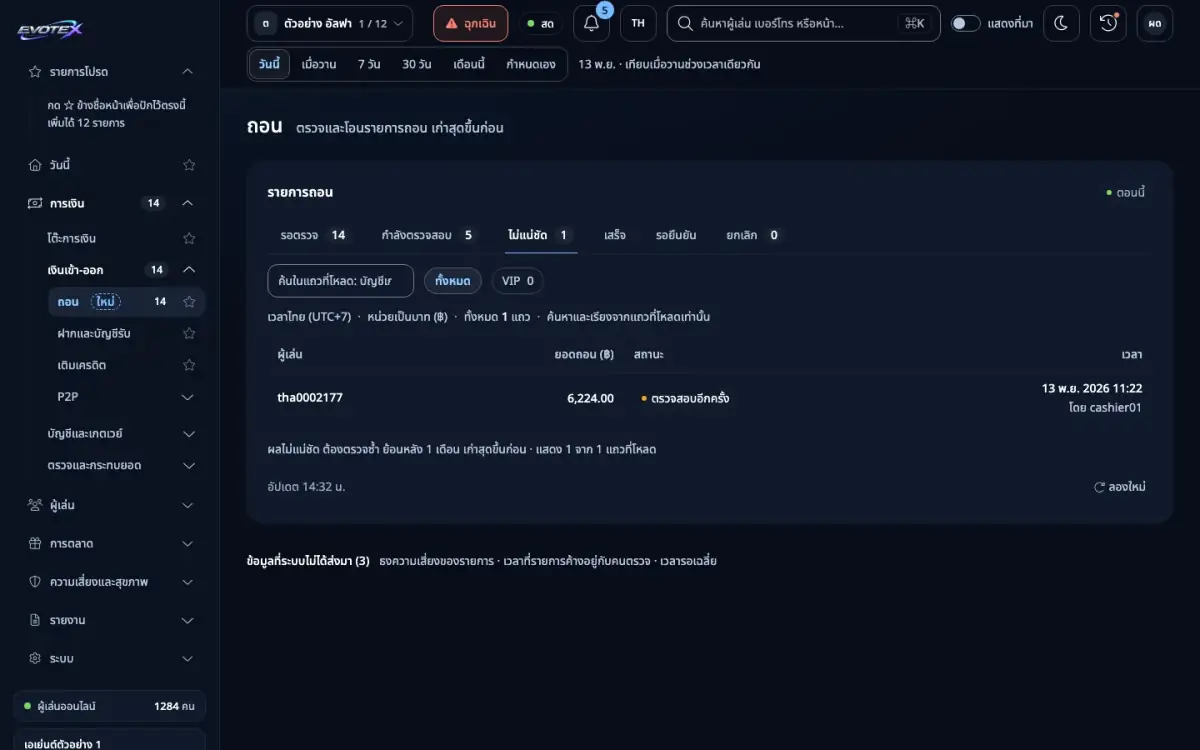
Sometimes you send a money order but the answer doesn't make clear whether it went through. The back office keeps that item on the money with an unknown result page, and doesn't accept a repeat money order on that item until it is closed. The finance team checks the result with the brand's payment provider, then closes the item and records the result. This closing step asks for an OTP (can be tried in the demo. The sample in the demo is item W-2045, which got an unclear answer after approval).
The number badge on the money with an unknown result menu shows how many items are waiting. A brand owner can open it regularly. The Today page has no box for money waiting on a result.
Switches and alerts so you don't have to watch the screen
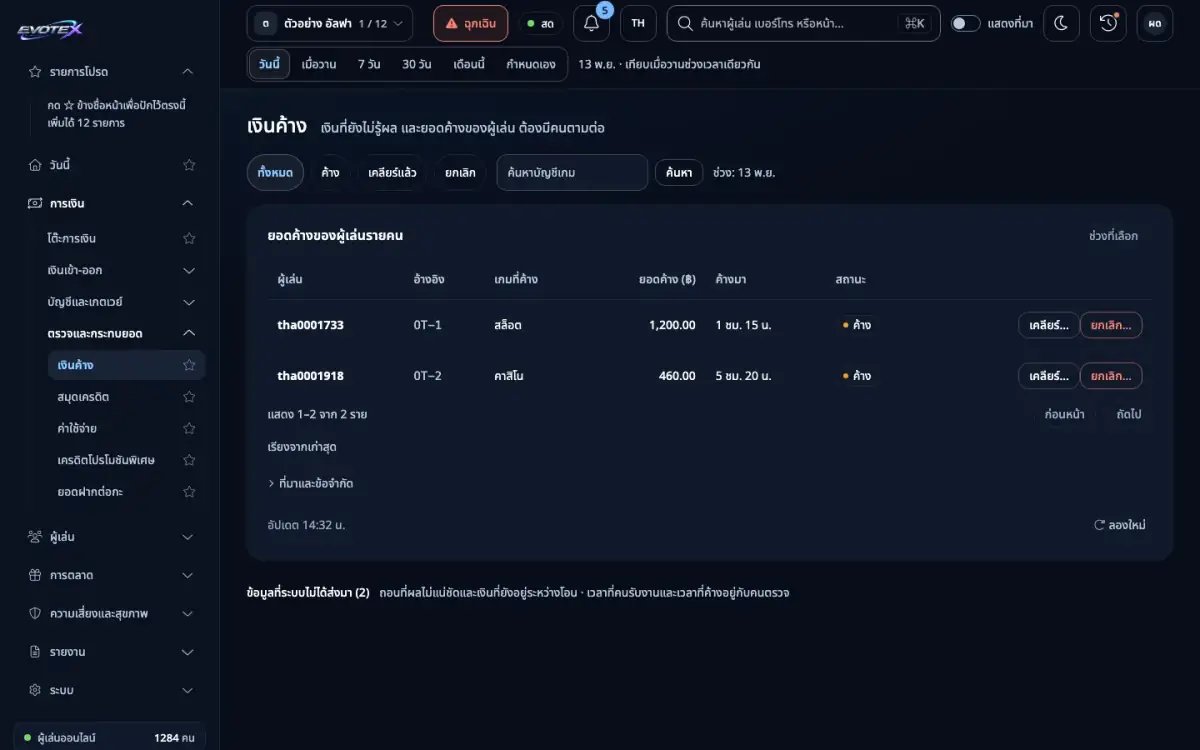
Good automation means the team doesn't have to stare at the screen. This section gathers what the back office has to help with that.
- Receiving account rotation plan: the Payments page has a Rotation plans tab. You set rotation by time, for example every 30 minutes, or by amount, for example when a daily total is reached. The sample in the demo uses both. The top of the screen summarizes how many receiving accounts are shown out of the total, how many automatic payout accounts there are, and which rotation plan is in use (can be tried in the demo)
- Automatic flag per account: receiving accounts that pick up amounts automatically and automatic payout accounts are flagged separately, so the team sees which account works which way
- Long-wait withdrawal warnings: warnings come in levels of yellow, red, and urgent, according to how long an item has waited. You can set the thresholds yourself (sample, the alerts in the demo are simulated and have no live sending channel)
- A system-wide switch to stop withdrawal payouts: the platform team can flip it, and brand teams can only read its status
- A switch to close a whole brand: used in an emergency. Pressing it stops automatic deposits, withdrawals, and amount deductions at once. It needs an OTP and a typed confirmation, and then every page shows a banner saying the brand is closed
- Credit for the automatic deposit and withdrawal service: the platform team sees each brand's credit and its expiry date, and knows before the system stops because the credit ran out (can be tried in the demo on the platform team's side, while the low-credit alert is a sample)
The full details of money work are in money in and out, feature by feature
What to ask our team
This page can't confirm these things, so ask during your demo call.
- Which kinds of deposit channels the system can pick up by itself in your brand, and which need a person to review
- Which accounts and connections with payment providers automatic deposits and withdrawals need, who sets them up, and when in the brand's launch plan
- Which kinds of withdrawals the system can pay automatically on its own, and where the conditions are set
- Who owns the credit for the automatic deposit and withdrawal service, how it is renewed, and who is told when it is close to running out
- When live long-wait withdrawal alerts will be available, because in the demo they are simulated
- If the payment provider's connection goes down, what the back office shows and what the finance team has to do
- Where the threshold for warning about overdue items starts, and whether it is kept per brand or in each person's browser
Keep reading
- How the withdrawal queue works: the approval work, screen by screen
- What a back office must have: a 12-point checklist split by role
- Reports a brand owner should open every day (page in Thai): the money-in and money-out numbers to read every morning
- Try the back office with sample data: try deposits, withdrawals, and manual top-ups yourself
- Promotions in the back office: the marketing team's work that connects to deposits
Our team's target is to open a new brand within 14 to 21 working days after the scope is agreed. See what the package includes on the packages and pricing page (page in Thai)
Related features
- A one-page withdrawal queue with totals by status sample in the demo
- Approve or reject from the panel beside the row sample in the demo
Related reading
How the withdrawal queue works
The finance team's order of work
What a back office must have
A good back office gives the owner the whole picture on one page and lets the finance team close money work fast.

Request a demo
Want our team to look at the real thing with you? Request a demo.