
Team and alerts: add people, set roles, and get warned about stuck work
A brand owner wants the team to work on its own, without coming back to ask for permissions every time, and wants to know in advance where work is stuck. In the demo, this back office lets you add people, set your own roles, and see who did what. The package includes the back office and your brand's player site in one bundle. If you're planning your first turnkey betting website, try setting up one role yourself and see whether it divides the work the way your team does. The people and roles in the demo are made-up data, not a real team. The alerts are simulated, and the real live sending channel is still designed, not in the demo.
Not for: people who want live alerts starting today.
5
Features in this group
3
Items you can try in the demo
All
The demo uses sample data throughout
Every page in the demo uses sample data and has nothing to do with any brand's money or accounts
Team and alerts: feature by feature
- designed, not in the demo
The alerts inbox, sorted by urgency
See what to do first, and click through to handle that item
The bell in the corner and the alert strip at the top of every page announce 7 kinds of alert, such as a withdrawal awaiting review, a result that isn't clear yet, a cancelled deposit, and announcements from the system. The alerts inbox is sorted by urgency, with a button that takes you to handle the item. In the demo the alerts are simulated. Add ?demo=live to the end of the link to have sample events pop in by themselves.
Simulated in the demo, with no real live sending channel yet
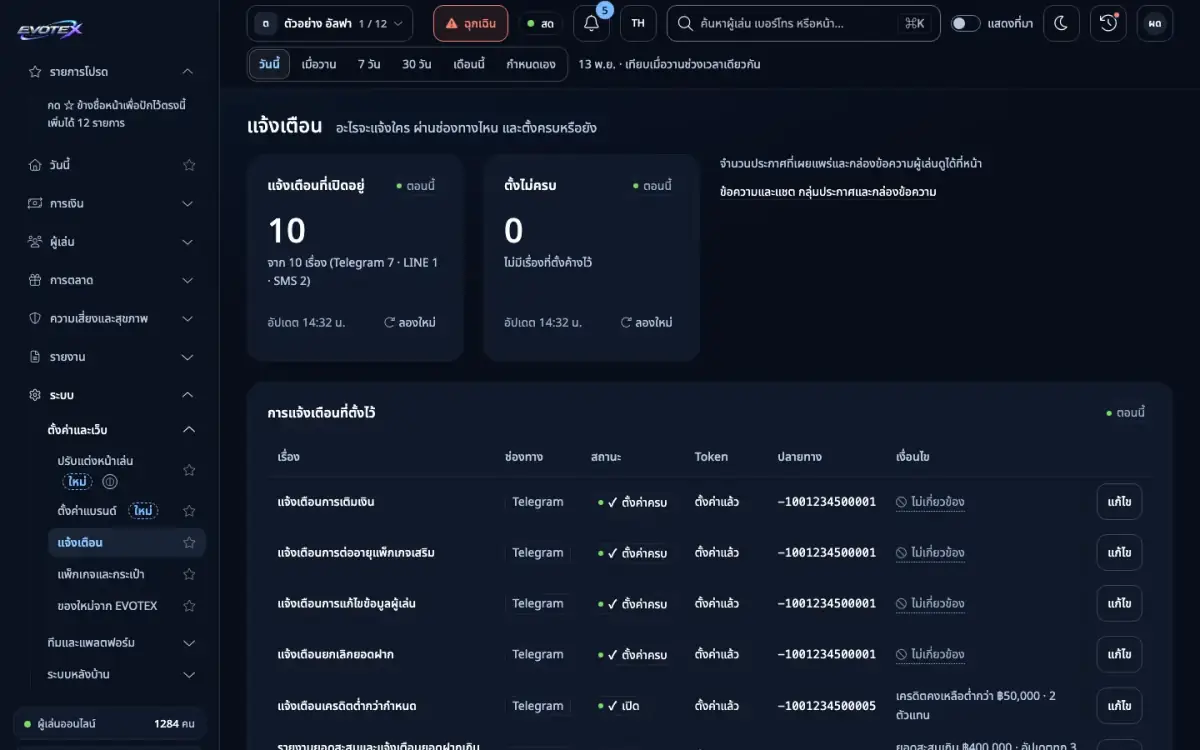
(sample data from the EVOTEX demo) - designed, not in the demo
Set the time for pending withdrawal alerts, and the channels
Decide for yourself how long a wait triggers an alert, and how you get alerted
The team sets the thresholds for how long a withdrawal waits before it turns yellow, red, and urgent. There's a preview to see the effect before you save, and you choose whether to be alerted on screen, by sound, or through the browser. A team that can't afford any pending withdrawals can set the alerts to come sooner. The values you set in the demo are kept only in your own browser.
The starting values are made-up, and not connected to the system yet
(sample data from the EVOTEX demo) - sample in the demo
Add people to the team and give them roles
The owner creates accounts for the team and decides which scope each person looks after
The Team page lists the members with their roles and scopes: a single brand, a group, or the platform. You can filter by role. The owner or group owner creates accounts for people on the team. The system issues a password and the owner tells the person, with no invitation email, so you know clearly who has an account. The team can add people, or deactivate someone who has left, by themselves.
- sample in the demo
Set roles yourself, with permissions to tick across 41 menus
Create a new role to fit your team's duties, without waiting for us to do it
The role editor lets you choose what a role can do in each menu, across 41 menus and 7 kinds of action. Start from 10 standard roles and click copy to adjust one. An owner can let the finance team approve withdrawals and let support only look. The permission table for every role can be read on one page.
The side menu in the demo isn't hidden by role yet
(sample data from the EVOTEX demo) - sample in the demo
A history of who did what, searchable and exportable to CSV
Answer right away when someone asks who clicked this item
The history page, on the Who did what tab, can be searched by the person who did it, the item code, or the username, and filtered by what was done, the outcome, and the date range. Open the details panel to see the closed result and the values that were changed, then click through to look at that item. The sign-in tab shows the sign-in records. Owners can answer questions about who did what by themselves.
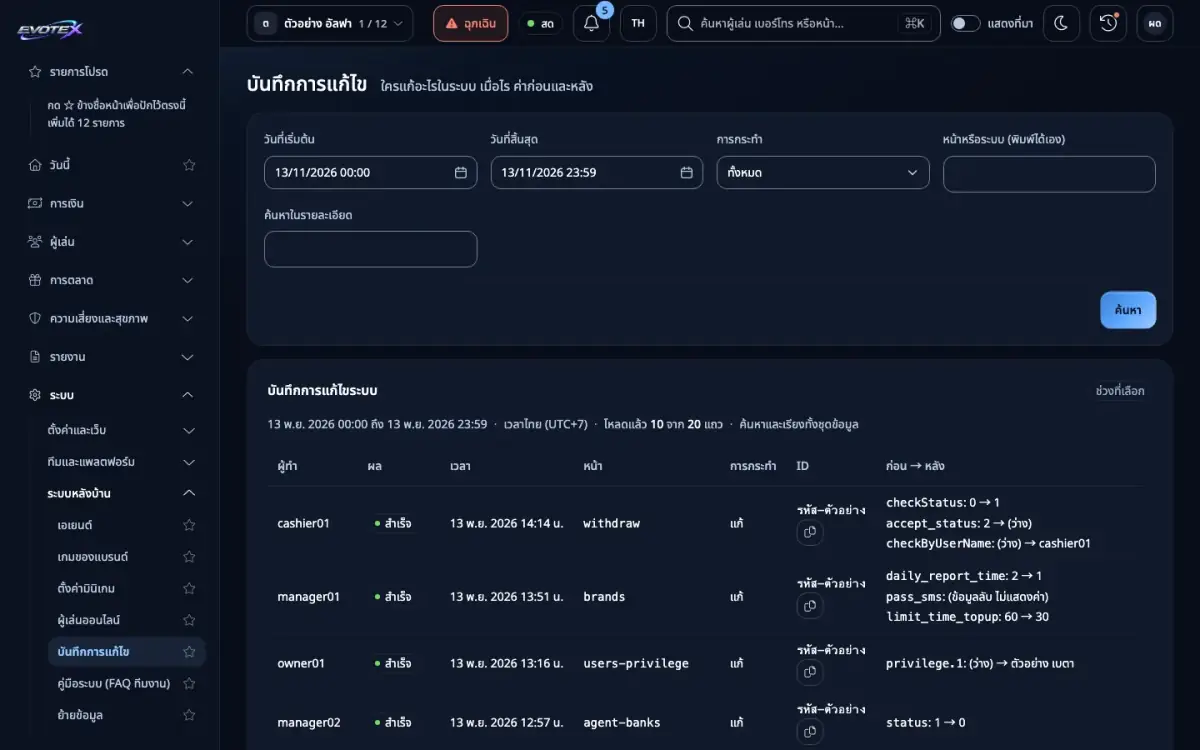
(sample data from the EVOTEX demo)
Team safety: switches for when something goes wrong
- sample in the demo
Set which IPs can get into the back office
Add, turn on or off, or delete allowed IP entries yourself
The Allowed IPs tab lets the owner add, turn on or off, or delete IPs, both IPv4 and IPv6. The Allow this IP button fills in the IP of the machine you're using. If you enter 0.0.0.0, which means every IP can get in, you have to tick a confirmation first. A team that works from one office can set up that fence by itself.
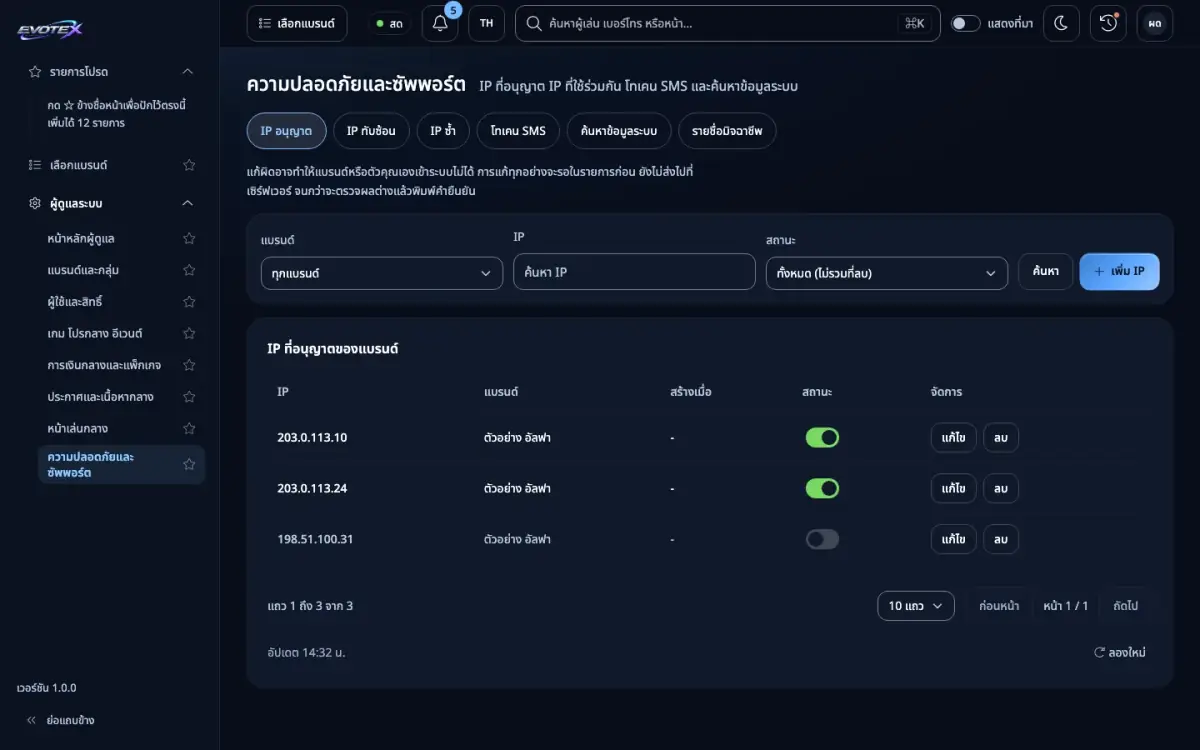
(sample data from the EVOTEX demo) - sample in the demo
Close the workplace right away when something happens
Sign out everyone in that workplace, and stop them from signing in again
The emergency button on the history page closes the workplace. Everyone in that workplace is signed out and can't sign in again until it's unlocked. So when something like a lost device or a sudden resignation happens, you can close the way in at once. To unlock, you have to confirm that the incident is over. Use it only when something has happened.
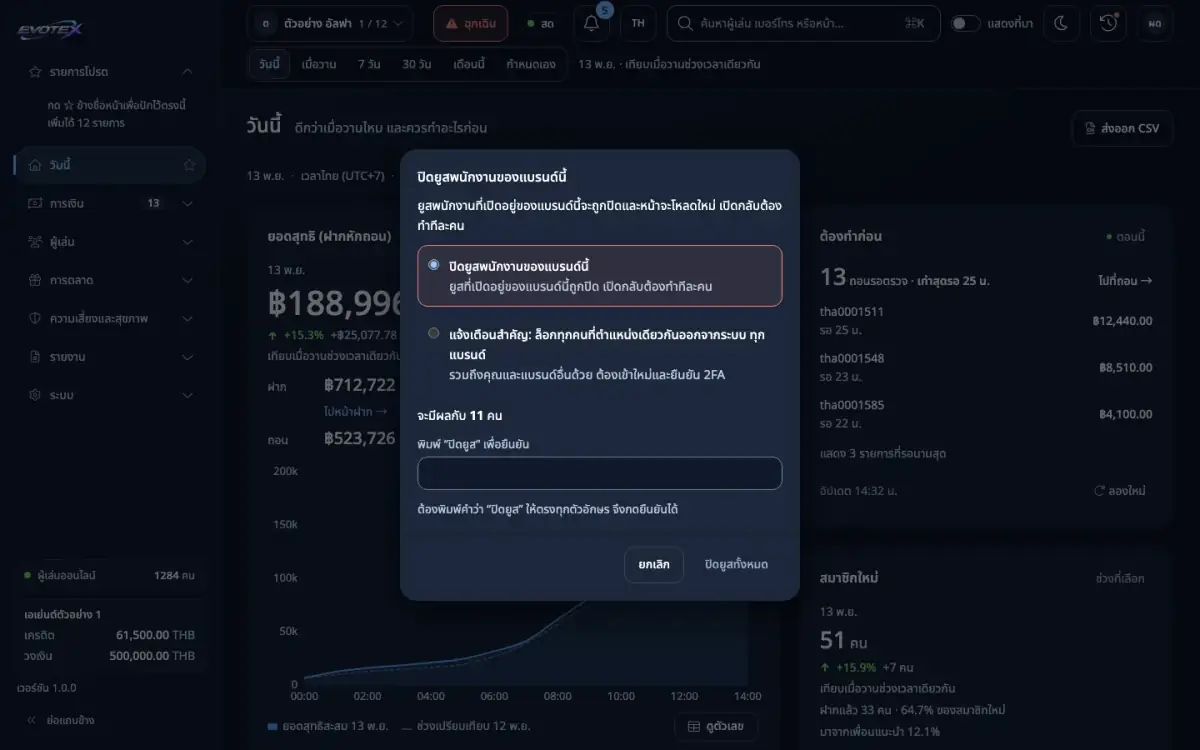
(sample data from the EVOTEX demo) - sample in the demo
A switch to stop the whole brand in an emergency
Stop deposits, withdrawals, and settlement for a brand at the same time, in one place
If something serious happens, the brand owner can click the switch on the settings page to shut down the whole brand right away. The system stops automatic deposits, withdrawals, and settlement all at once. You have to enter a confirmation code and type a confirmation phrase to prevent a slip. After you click, a Brand closed strip shows on every page. The warning strip helps the team stay on the same page.
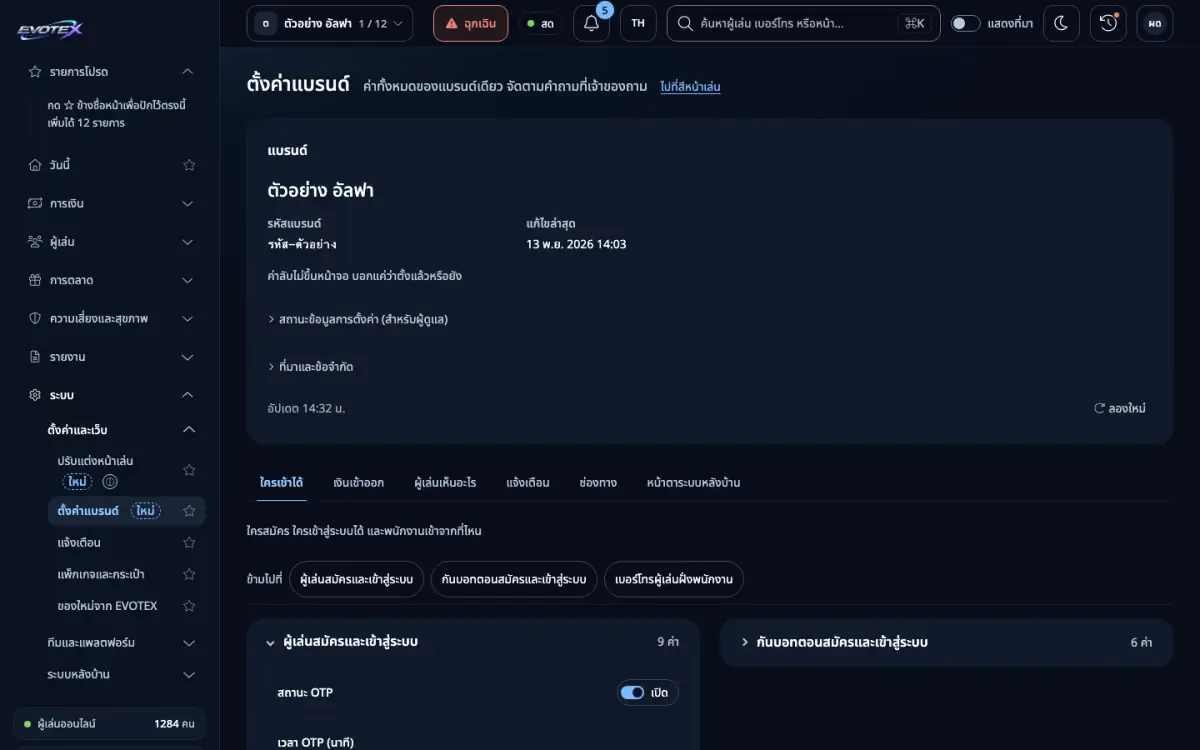
(sample data from the EVOTEX demo)
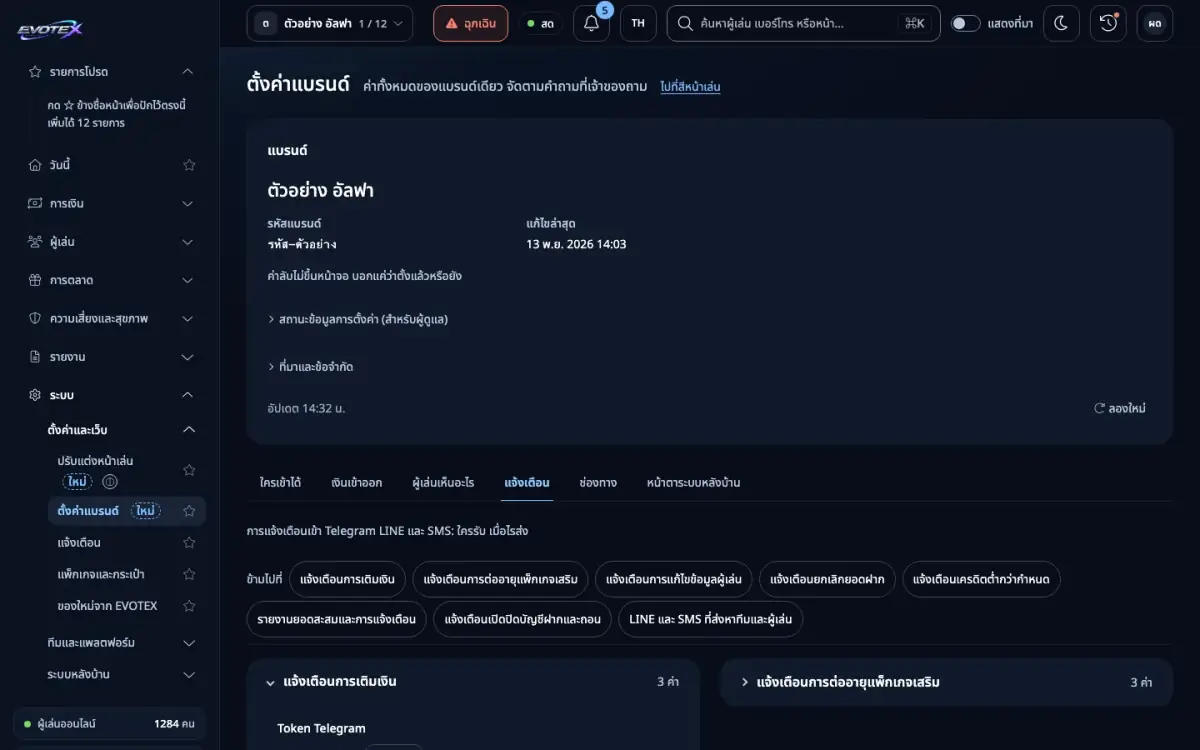
Screens from the newer back office
More screens of this group from the newer back office, blue theme. It looks different from the demo above, which has a teal theme. You can only view the pictures; you cannot try it in the demo on this site.
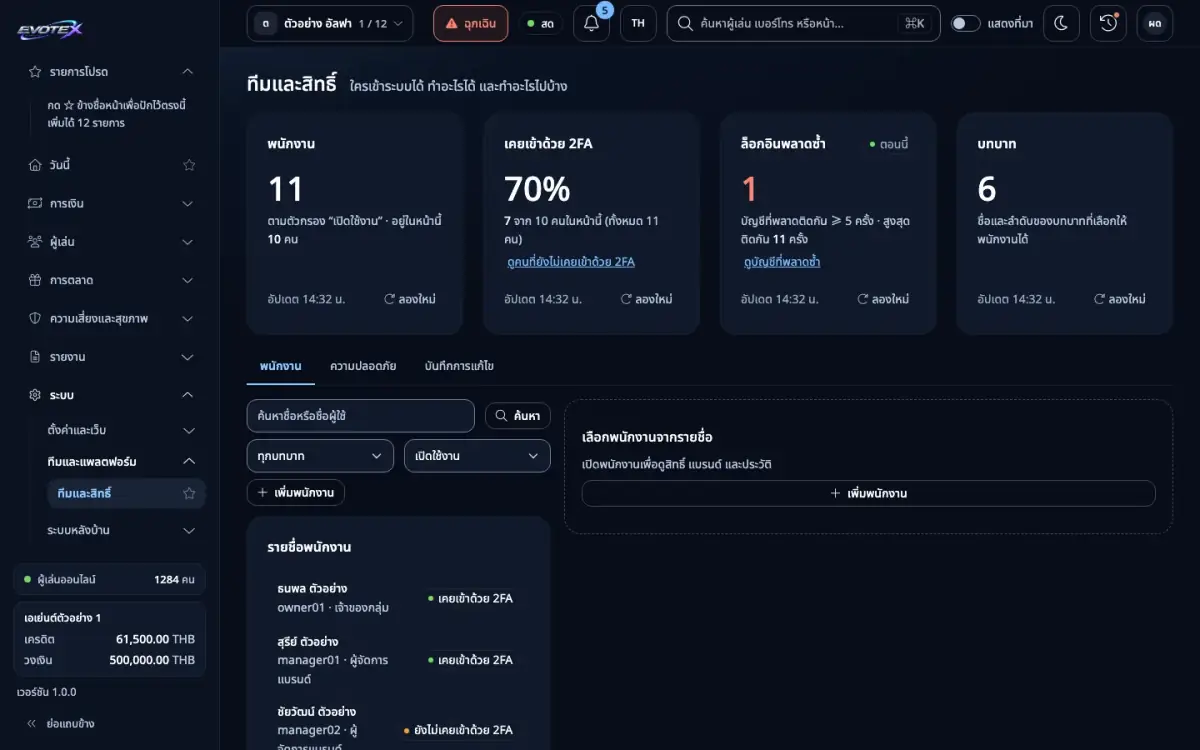
Team and permissions: overview
The number of staff, sign-ins with 2FA, and roles
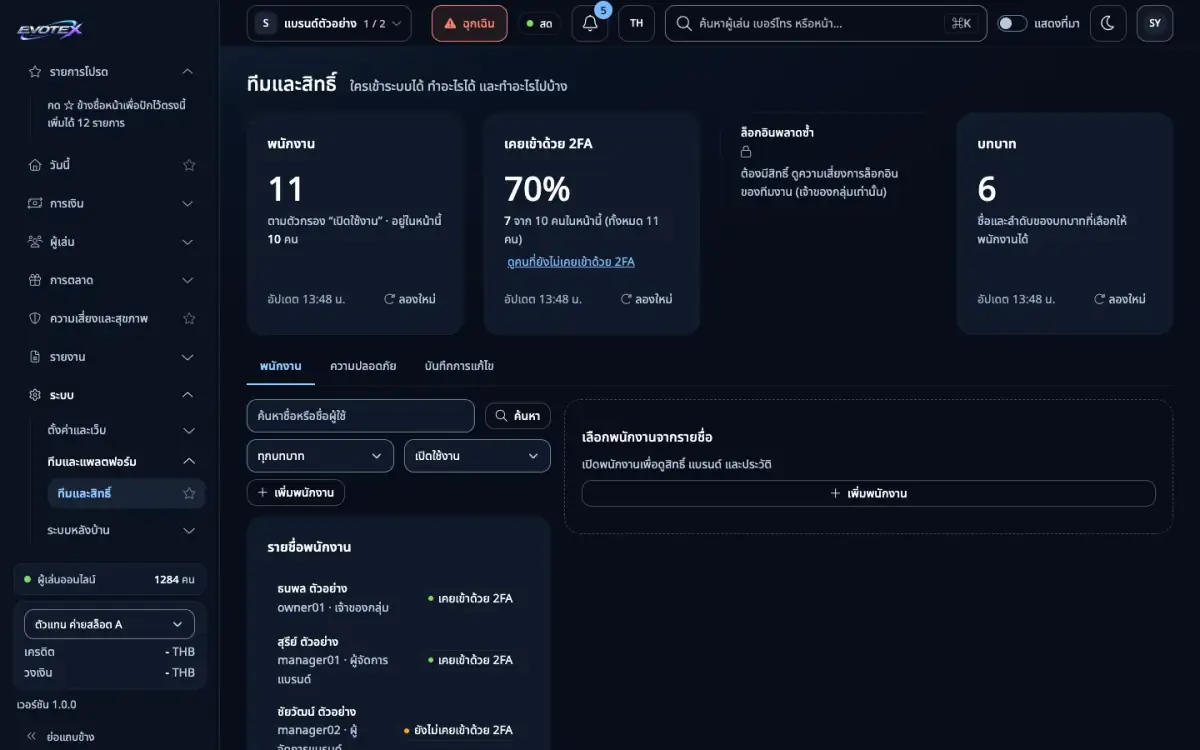
screenshot from the live system Screen from the newer back office (blue theme), with sample data from a prototype. The demo on this site has a different look (teal theme) and does not have this page yet, so only the picture is shown. Team and permissions: staff list
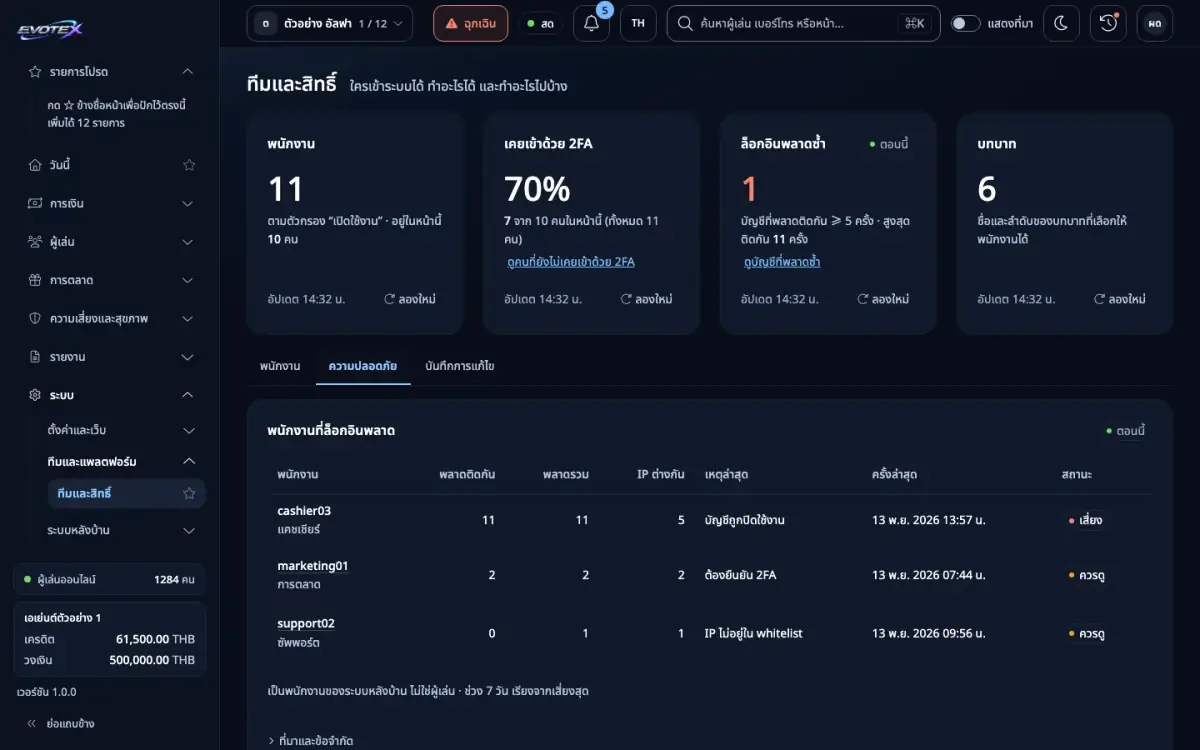
The staff list and their 2FA status
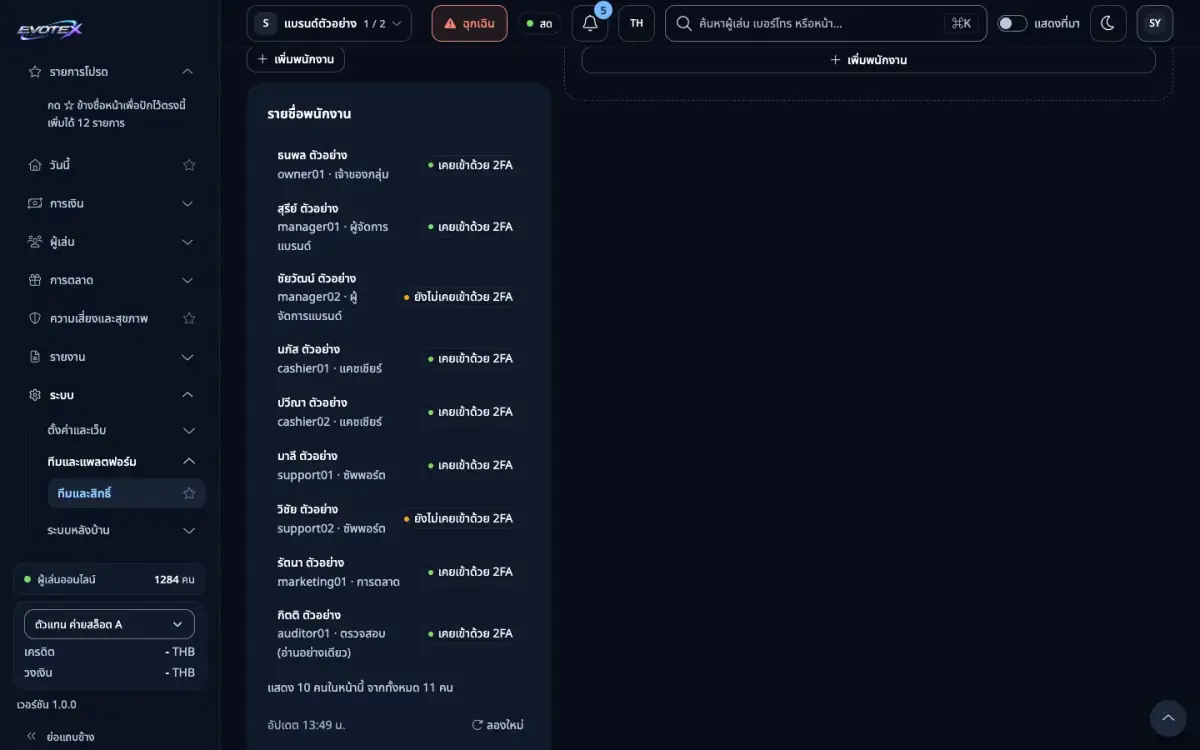
screenshot from the live system Screen from the newer back office (blue theme), with sample data from a prototype. The demo on this site has a different look (teal theme) and does not have this page yet, so only the picture is shown.
Not in the demo yet
Items that are not in the demo yet
- Instant alerts for overdue withdrawals are simulated in the demo. The real live sending channel is still designed, not in the demo.
- The side menu in the demo changes only with the customer or platform view. It isn't hidden by role yet.
- The back office is in Thai only.
Frequently asked questions
Is the side menu hidden by role?
In the demo the side menu changes only with the customer or platform view, so a finance account and an owner account see the same menus. What you can try is the permission editor and the permission table. Hiding menus by role in a real system is left to the system itself, and we haven't tested that with a real system yet.
Can I invite people to the team by email?
There's no invitation email. The owner or group owner creates accounts for people on the team, and the system issues a password that the owner tells the person. This way the owner controls who has an account and which menus they see.
Does the back office come in languages other than Thai?
The back office is in Thai only. The only exception is platform announcements, which have to be filled in in both Thai and English. Times and dates are shown in Thai time and the Buddhist Era year.
Related reading
10 questions for system vendors before you buy
A good question is one you can check. Ask to try the real thing in the demo instead of listening to an explanation, and note which parts the vendor says are still a sample.
A day for the owner, finance team, and support
The owner opens the Today page and sees net, deposits, withdrawals, new members, and pending withdrawals on one page.

Want to see the real thing before you talk to us?
Our team's target is to open a new brand within 14 to 21 working days after the scope is agreed. That's a target, not a guarantee. See packages and pricing (page in Thai) or try the back office demo before you talk to our team.
See the package and price (page in Thai)