
Multi-brand back office: see every brand in the group from one place
Run several brands from one back office. The by-brand table puts them side by side on one page, you can try it in the demo, and the package comes with each brand's player site.

Contents
Running several brands from one back office: what it's about
Many operators don't run just one brand. They have several brands in the same group, or several groups under one platform admin. The problem that follows is having to open the back office brand by brand to read the numbers, then compare them yourself. This page explains how the EVOTEX multi-brand back office handles this, and what to ask our team before you decide.
EVOTEX divides things by how many brands you run and at what level. There are three levels: brand, group, and platform. Every level gets the back office and your brand's player site in one package. For fees, see our packages (page in Thai), or request a quote for the scope you need. If you're getting ready to launch a turnkey betting website across several brands from the start, the big picture is in the full checklist.
The label sample in the demo means you can try it in the back office demo with sample data. The label designed, not in the demo means there's nothing to click in the demo yet.
The group-level Today page: a by-brand table
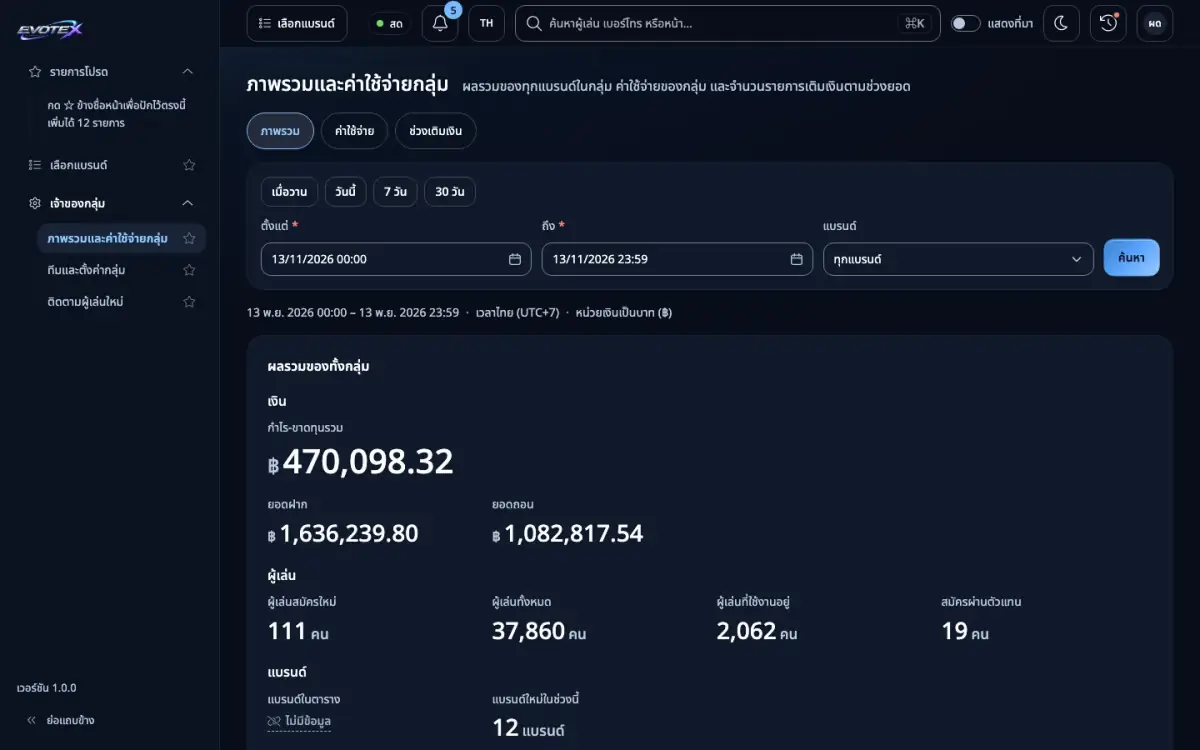
If you run several brands in the same group, the group-level Today page is a by-brand table, so you can compare them on one page. You can try it on the group home page in the demo (opens in a new tab). That part is sample in the demo.
- Each brand is one row of the table
- The columns are deposits, withdrawals, net, and withdrawals pending now. There are tick boxes to select brands
- Choose a date range and compare it with the previous range
- Filter to only the brands with pending withdrawals, or the brands whose net is negative
- Export the table as a CSV file only
This table answers the group owner's first question each morning: which brand has items I need to look at first? Without a table like this, the owner has to open each brand and write the numbers down to compare them. From the pending withdrawals card, you can jump to the withdrawal queue of the brand that has waited longest.
The numbers for brands other than the one you're viewing in the demo are estimates, as the banner on that page says.
Comparing brands and switching brands
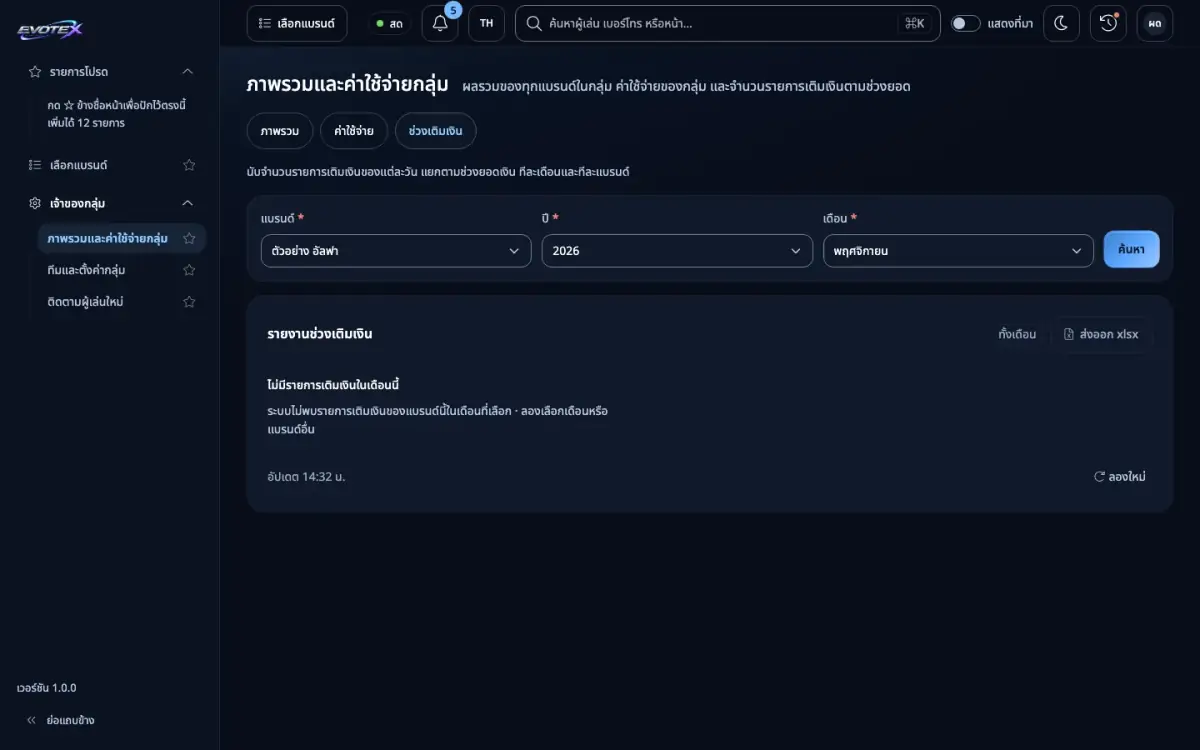
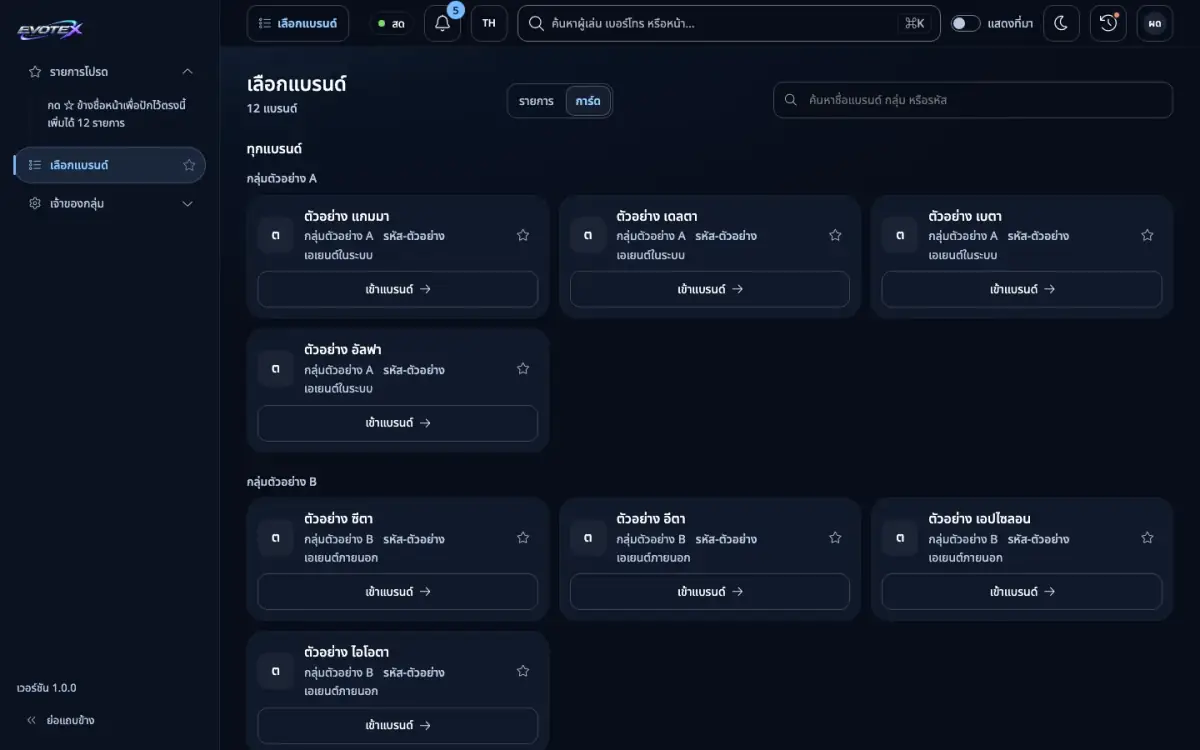
Tick two or more brands in the table and open the compare panel, and you see each brand's numbers side by side. To drill into one brand, pick the brand or the group on the Choose a brand page, without signing in again. One account can hold several brands. Both are sample in the demo.
Group users and roles: managed on the Team and permissions page
Group users and roles are managed on the Team and permissions page, the same page as for a brand. The group owner adds or deactivates people and sets roles on that page. The key point is the scope of the permission, which you can choose at three levels: brand, group, or platform.
How to think about assigning permissions (this is advice, not a system default):
- Someone who looks after the finances of a single brand should get permissions in that brand's scope
- A group owner who needs to see every brand in the group should get permissions in the group's scope
- An admin who looks after several groups uses the platform scope
Which menus each role sees in each scope is something to ask our team during your demo call.
The platform: several groups from one console
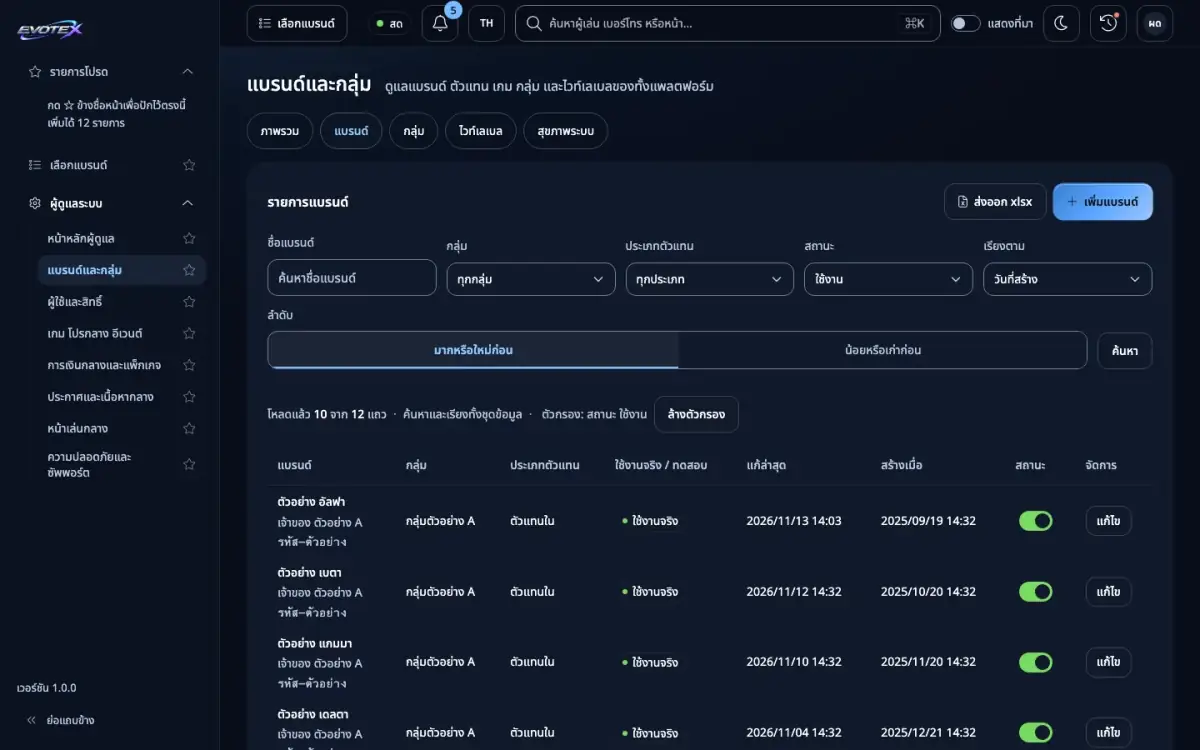
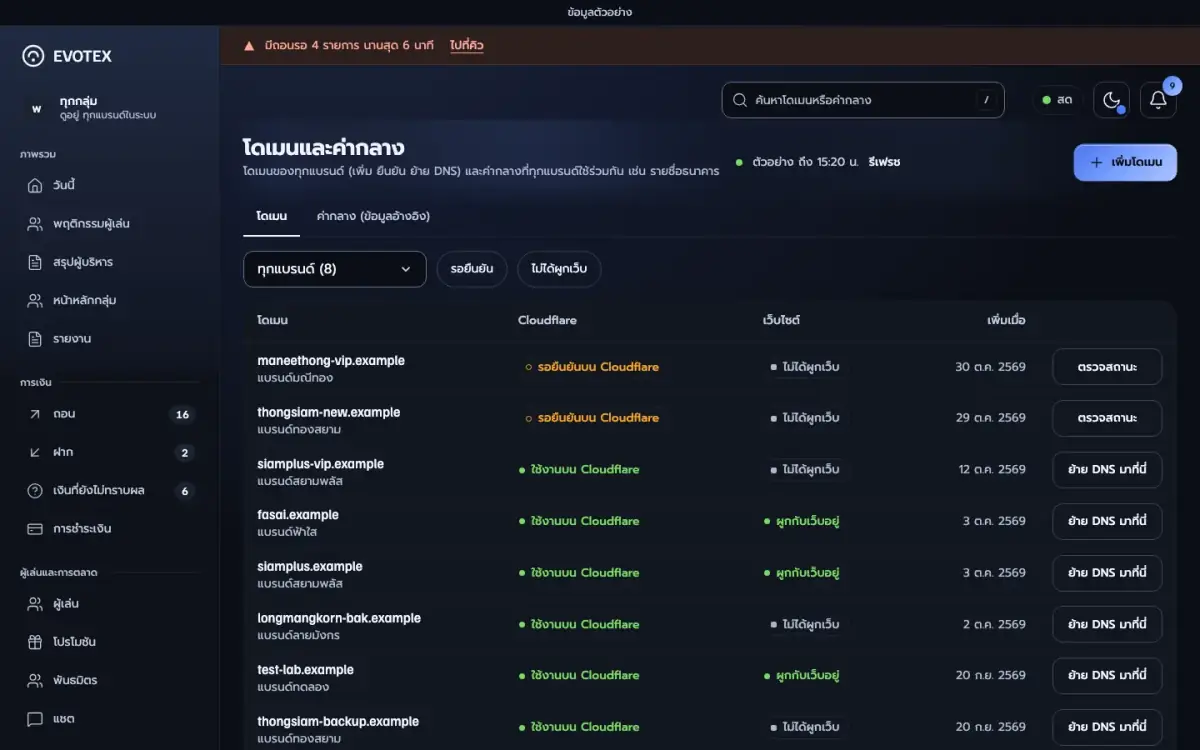
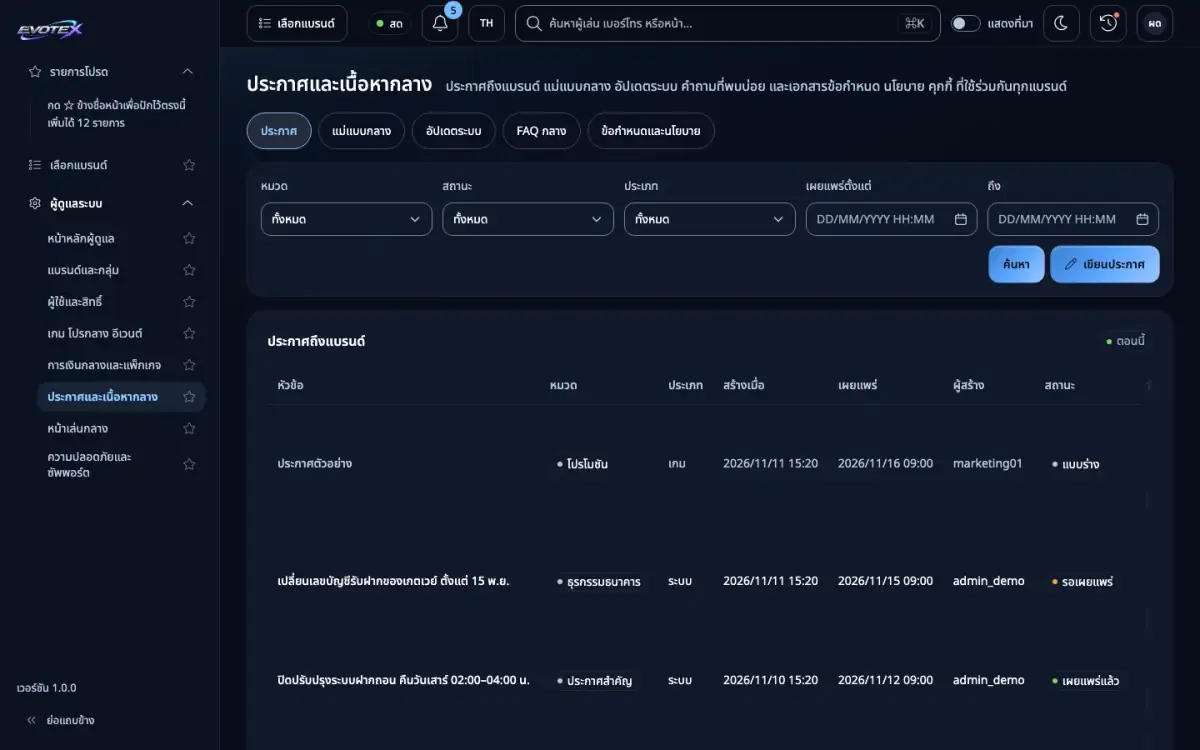
If you run several groups, the platform admin has a console separate from the brand menus. You can try it on the platform console in the demo (opens in a new tab). Switch to the platform team view first. All of it is sample in the demo.
- See every group and every brand, with today's net for the whole system
- Create a new group together with its group owner from a single form
- Add, verify, and move the DNS of a brand's domain
- Send an announcement to every selected brand at once. You have to fill it in in both Thai and English
Each announcement doesn't yet show who has read it. If you need that, ask our team.
Three scopes: who gets what
This table summarizes what each level has, as EVOTEX states it. If you want to know about anything the table doesn't mention, ask our team.
| Level | Best for | What you get |
|---|---|---|
| Brand | An owner who runs one brand | The brand's Today page, withdrawal queue, deposits, partners and payments, players, promotions, messages, chat, player site, team and permissions, history and security, and general settings. Every page can be tried in the demo, except the player site's content and SEO, which are designed, not in the demo |
| Group | An owner who runs several brands in the same group | Everything at brand level, plus the group-level Today page as a by-brand table, and group-level users and roles. You can try it in the demo |
| Platform | A platform admin who runs several groups | A platform console separate from the brand menus: create groups, see an overview of the platform, move DNS or domains, central settings. You can try it in the demo when you switch to the platform team view. Viewing the activity history of every group is designed, not in the demo |
Read the details of the daily work menus in the betting-site back office (page in Thai).
Who uses what when you have several brands
The main roles are still the same three groups. Only the scope gets wider.
- Brand owner or group owner: reads the day's numbers, organizes the team and permissions, and if there are several brands, compares them on one page
- Finance team: works the money queues all shift, checking each item and deciding whether to approve or reject it
- Marketing and support teams: reply to players, search for players, and run promotions and messages
Even though the system lets you choose the scope of a permission, it doesn't decide for you. That's how your organization is set up. An operator with several brands should decide first whether one finance team will cover several brands, or each brand has its own team.
A day for a group owner: a story to picture it
This is a hypothetical scenario, not about any brand, and it has no numbers.
In the morning, the group owner opens the back office and sees today's by-brand table. They look first for the row that has pending withdrawals, then ask that brand's finance team who's looking at it.
Next they open the Team and permissions page, because a new employee has joined another brand. They add the person, set a role, and choose the permission scope so it covers that brand only.
Late in the day, they export the table as a CSV file to take to a team discussion.
The system helps with the combined table, organizing people and permissions, and exporting files. Deciding which brand needs a look first is a person's job.
Questions to ask our team before using it for several brands
This page covers only what EVOTEX states. There are things to ask directly and write the answers down, to compare with other vendors.
- Does a permission limited to one brand see the data of other brands in the group?
- What do you have to do to add a new brand to the group later, and who does it?
- Can you choose a player site template separately for each brand in the same group?
- How far can each brand's player site be set separately? (In the demo you can try setting the player site of a single brand. Setting it separately per brand in a group, ask our team)
- Where is the data stored, how is it encrypted, and how is it backed up, separately per brand or together? (Our team tells you during your demo call)
Start by telling us how many brands you have
The EVOTEX request a demo form has a field for the number of brands. It helps choose the scope that fits your work. There's also a field for the back office you use now.
If you're moving several brands over at the same time, our team helps plan the move. See the checklist in the article migrating your back office, or see the scope of use at renting the system.
To see all the screens for this part, go to multiple brands and domains. For a detailed breakdown of the three levels, read run several brands from one back office.
You can click through the demo before you talk to us. All the data is sample data. Read how to try it in try the back office with sample data, and go to contact us (page in Thai) when you're ready.
Related reading
Rent the system
All three scopes of use
Migrating your back office
A step-by-step checklist for moving from your current system

Request a demo
See the custom terms, then tell us how many brands you run