
Betting site withdrawals: how the queue works and what to watch
By the end your finance team will know what a good withdrawal queue looks like, what to check first, and what to do when the answer on money is unclear.
Contents
Finance teams that run a site face the same questions every shift: how many withdrawals are waiting right now, who sees them first, and how long have they been pending?
This article explains what a withdrawal queue is, how to read one, and how the withdrawal queue in the EVOTEX back office works. It suits brand owners and finance teams. The withdrawal queue sits in a back office that comes with the brand's player site in the same package.
Anything that is designed, not in the demo, or only a sample is labeled in the section where it appears.
This content is written for operators and for teams that handle money every day. It isn't written for players, and it isn't legal advice.
What a withdrawal queue is, and why you need one
A withdrawal queue is the list of players' withdrawal requests that wait for your team to review. If money goes out without a queue, nobody knows who has checked what. A queue gives every item a status, an owner, and a history you can look back on.
In EVOTEX, each kind of money work has its own single queue page. The finance team sees the items, decides, and sees the result in the same row. Withdrawals work the same way: review, then approve or reject, all from one page.
The workflow in EVOTEX: what the finance team does on each shift
On each shift, the finance team works through this order:
- Open the Today page and see the pending withdrawals as soon as you arrive
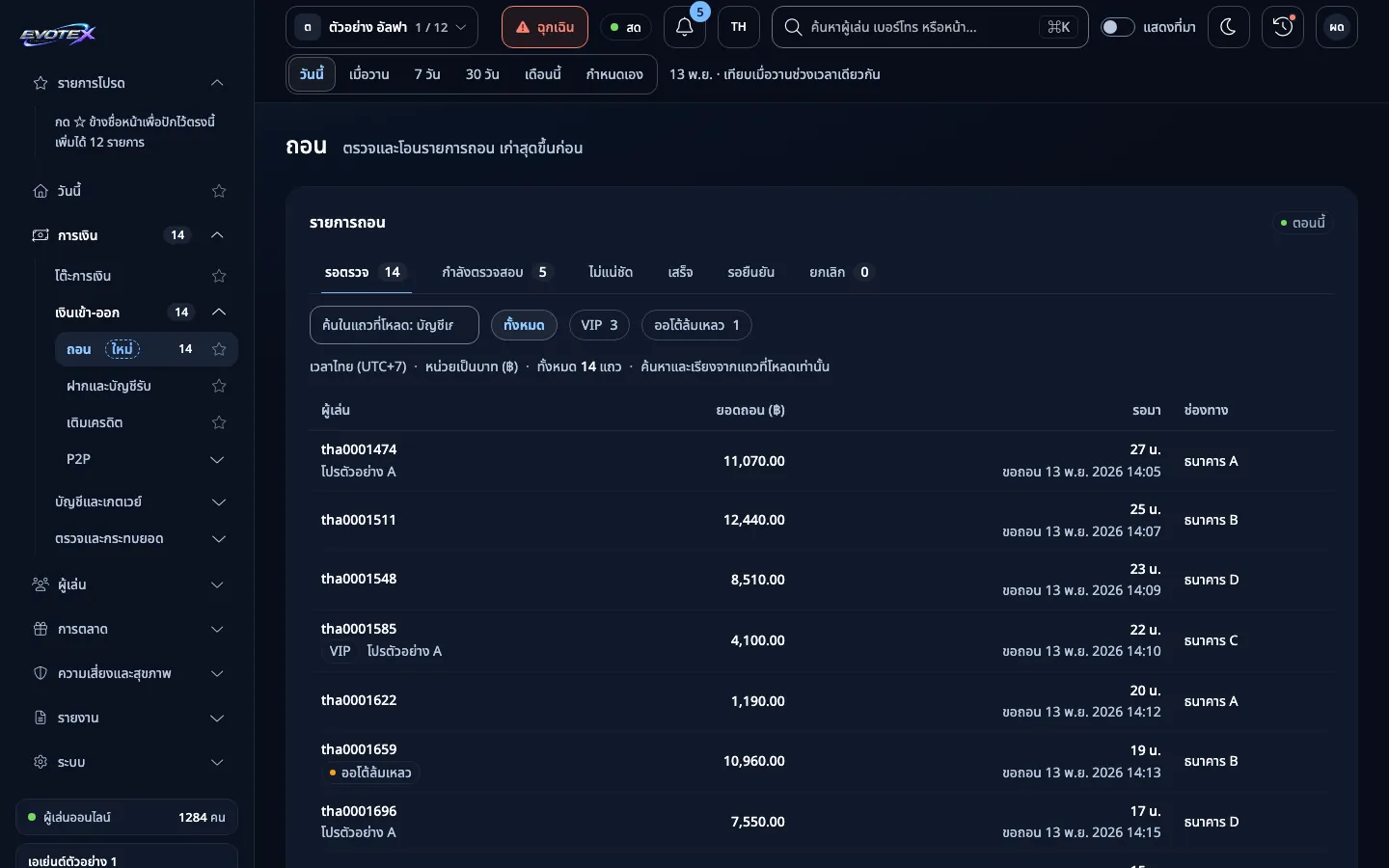
- Go to the Withdrawals page and see every item on one page
- Claim an item and start work on it. You must do this before you can approve (designed, not in the demo)
- Review the item. A player's sensitive data is partly masked (designed, not in the demo)
- Approve or reject
- See the result in the same row, then move to the next item
Two safeguards apply when you approve. The demo shows the first one. The second is still designed, not in the demo.
- OTP: approving a withdrawal takes one extra code step before approval. You can see this step in the demo (sample data)
- Duplicate protection: every approval carries a duplicate-request key (Idempotency-Key) so the same order can't be sent twice (designed, not in the demo)
If you want to try it yourself, open the demo and approve or reject one item on the Withdrawals page (sample data). How to try it is in try the back office with sample data
Walk through the withdrawal queue, screen by screen
Each step below says what the screen shows and what the finance team should check before moving to the next step.
Step 1: open the Today page and see the pending withdrawals
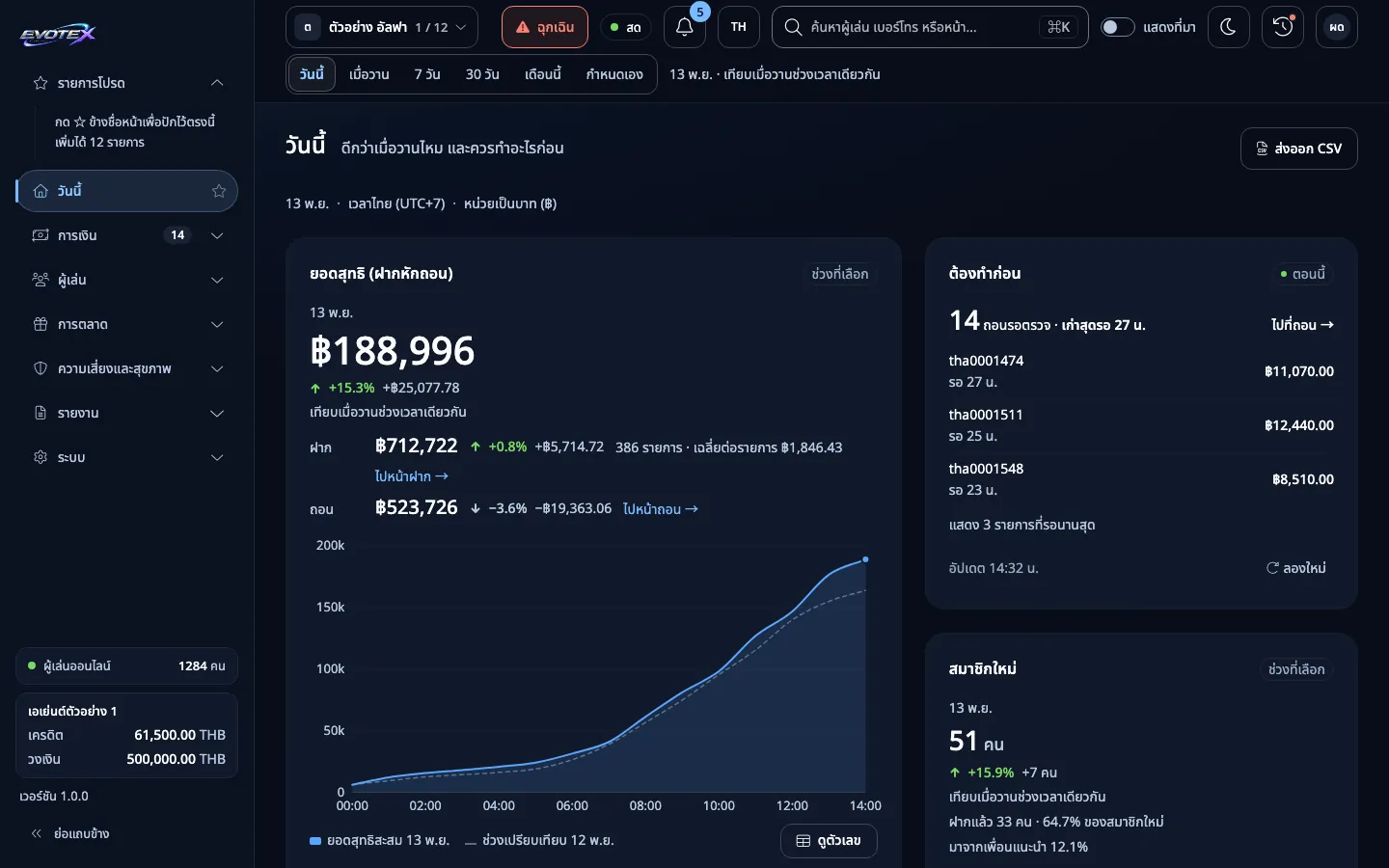
The first page of the back office lets you read the day's numbers right away. As soon as you open it, you see the pending withdrawals.
The finance team uses this page to answer the first question of the shift: is there work waiting? If there is, go to the Withdrawals page.
Step 2: go to the Withdrawals page
The Withdrawals page puts the withdrawals on one page, so the team doesn't have to switch between several menus. Read the whole list first, then choose which item to start with.
Step 3: claim the item and start work (designed, not in the demo)
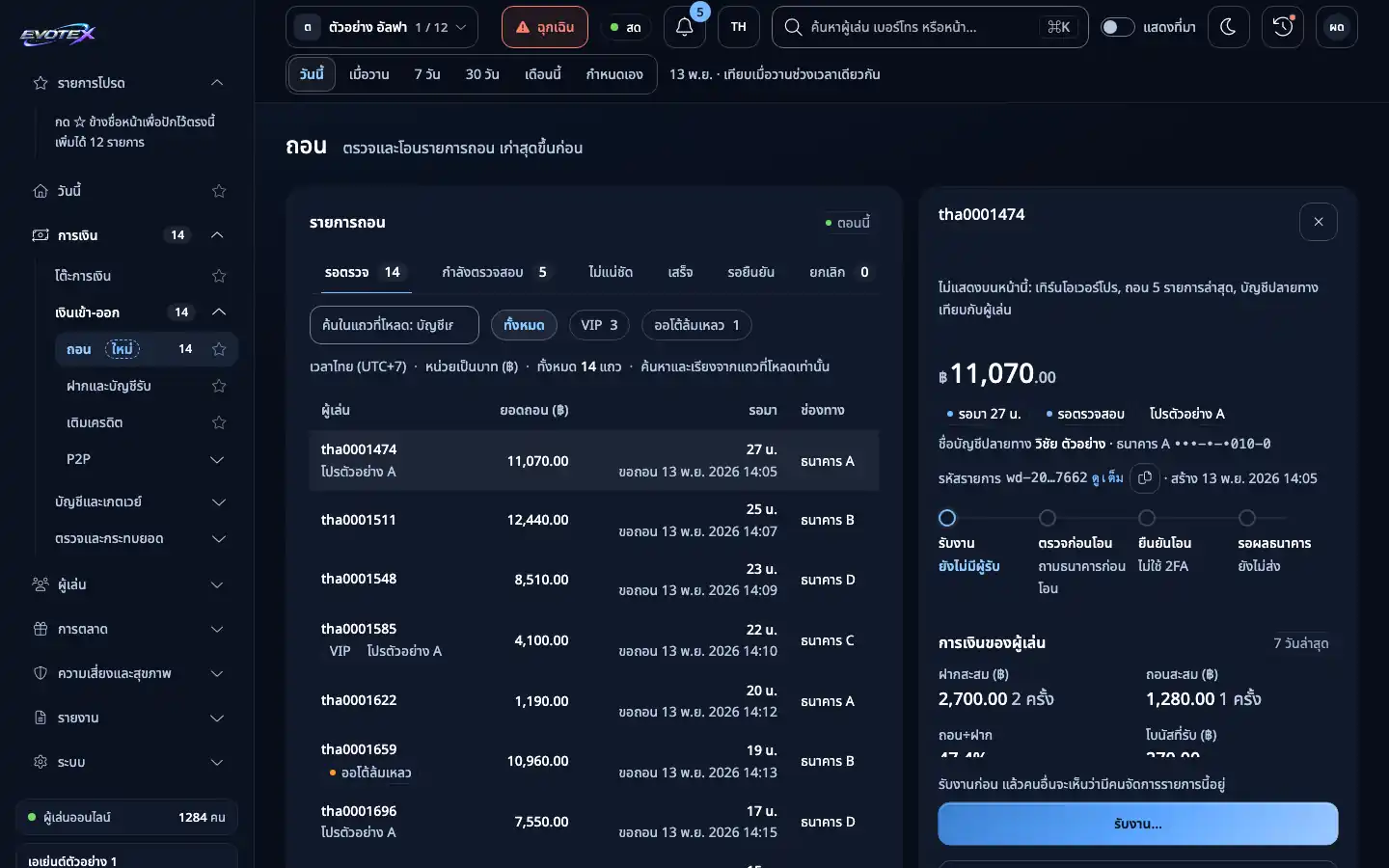
In EVOTEX you must claim a withdrawal and start work on it before you can approve it. So the team should agree who claims which item, so two people don't review the same one.
Step 4: review the item
Open the item you claimed to see the details. A player's sensitive data is partly masked (designed, not in the demo).
What to check is whether this item matches what your team has agreed. For example, does the amount match the player's money movements? You can open those movements from the Players page.
Step 5: approve or reject
Once the review is done, you approve or reject from the same page.
There are two safeguards. If an OTP is set, the system asks for one extra code before approval. The demo shows this step. Each approval also carries a duplicate-request key (the duplicate protection part is designed, not in the demo).
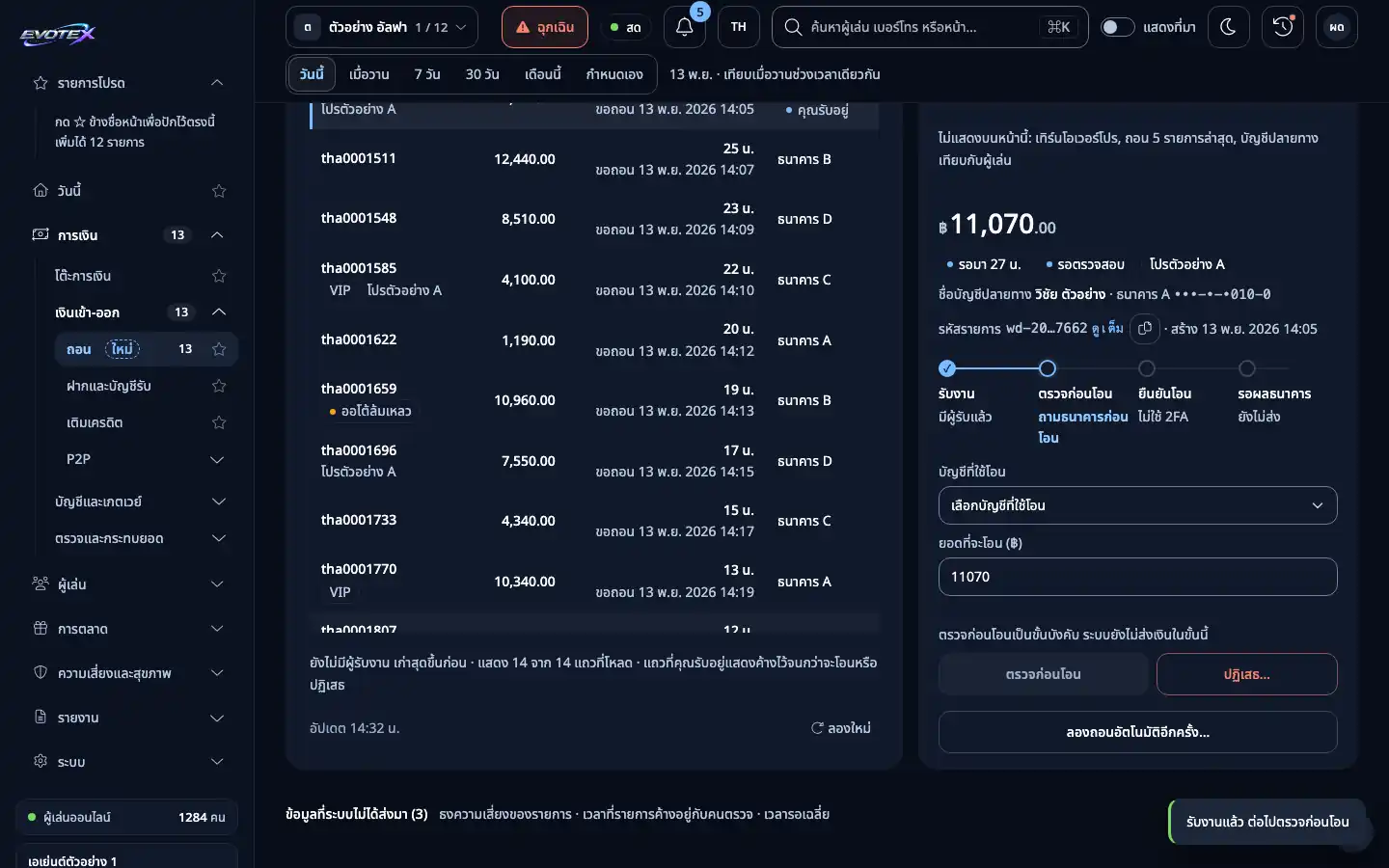
If you reject, give the reason to support in the way you agreed, so support can answer players who ask back in a consistent way.
Step 6: see the result in the same row, then move to the next item
The decision shows up in the same row you pressed. The team sees right there whether it went through.
Look at the result clearly before you move on, because an item whose answer came back unclear has to stop. You can read more in the section on money with an unknown result.
One shift as a story
This is a made-up scenario. It isn't a real event from any brand, and it has no times or amounts in it.
The head of the finance team starts her shift and opens the Today page first. She sees pending withdrawals, so she goes to the Withdrawals page.
She starts with the item that has waited longest. She claims it first, then opens the details and compares them with the player's money movements. Everything matches, so she approves.
The system asks for an OTP, because this brand set one. She enters the code, the result shows in the same row, and she moves to the next item.
One item is different. When the money order was sent, the system's answer wasn't clear on whether it went through.
She doesn't press again. She leaves the item pending and checks with the brand's payment provider whether the money has gone out.
Once she knows the result, she closes the item and writes down who closed it and why.
Before the shift ends, she opens the Today page once more, checks that its numbers match the Withdrawals page, and tells the next shift which items are still waiting.
The system helps with a single queue page, results in the row, and duplicate protection, but it doesn't do everything. Checking with the payment provider and writing down the reason are still work for a person.
Reading the queue well: four questions the finance team should be able to answer
On every shift, ask yourself these four:
- Of the items waiting, who sees them first?
- How long have they been pending?
- Do the numbers on the Today page and the Withdrawals page agree?
- For money with an unclear answer, has someone followed up until it is closed?
The third one gets skipped most often, even though it is the fastest way to tell that something is wrong. If the numbers on the two pages don't agree, stop and find the cause before you approve the next item.
Set a rule for when an item counts as overdue
EVOTEX lets you set how long an item can wait before it counts as overdue (designed; only part of it can be tried in the demo).
Every team runs shifts differently, so the rule you set should come from your real working rhythm.
- See how fast your shift normally closes withdrawals, then set the rule a little beyond that
- Set it, then review after the first week. If the number of overdue items grows every day, check whether the queue is too heavy for your team
Real-time alerts for overdue withdrawals
EVOTEX has real-time alerts for overdue withdrawals (sample, simulated in the demo). The alert draws attention when an item has waited past the rule.
One caution: an alert sent to everyone soon gets ignored, so agree first on who is responsible for answering each alert.
When the system's answer is unclear: money with an unknown result
Sometimes you send a money order, but the system's answer isn't clear on whether it went through. This is a point where money can slip away.
In EVOTEX, that item stays open until someone closes it, and money can't be sent again from that item (sample in the demo, not yet tested with a live payment system).
You have to stop a second order because the first one may have gone through while the answer got lost on the way. Sending it again could make the money go out twice.
The way of working we suggest for your team:
- Don't try to send it again yourself
- Check the real result with your own payment provider
- Once you know the result, close the item
- Write down who closed it and why
A brand owner should open the items with an unknown result regularly, because the brand owner's Today page can show whether any money is waiting on a result (sample in the demo, not yet tested with a live payment system).
Who sees what in the withdrawal queue
Not everyone needs to approve withdrawals. In EVOTEX, work is split by role, and you can set what each role sees and can do in each menu.
| Role | Main money work | Menus used |
|---|---|---|
| Finance team | Review, then approve or reject withdrawals; review and approve deposits; pay or cancel partner commissions | Withdrawals, Deposits, Partners, Payments |
| Brand owner or group owner | See the day's numbers; see whether any money is waiting on a result (sample in the demo); manage the team and permissions | Today, Team and permissions |
| Marketing team and support | Answer players, search for players, manage promotions and messages | Players, Promotions, Messages, Chat |
You add or remove people and set roles on the Team and permissions page. You can choose the scope of permissions at the level of a brand, a group, or the platform.
To see who did what, open the history and security page (sample in the demo).
Which roles can see the Withdrawals page is something this page can't confirm in detail. Ask our team during your demo call. A simple rule: give withdrawal approval to only as many people as needed. The fewer there are, the easier it is to look back.
Can you do this from mobile?
Yes. The main work of each role is designed to be done on mobile, including approving withdrawals.
Every page works at 390 px wide without sideways scrolling. Tables become lists of cards, and the details of each item open from the bottom of the screen.
We've checked it in a browser at this width. We haven't tested real iOS and Android devices yet.
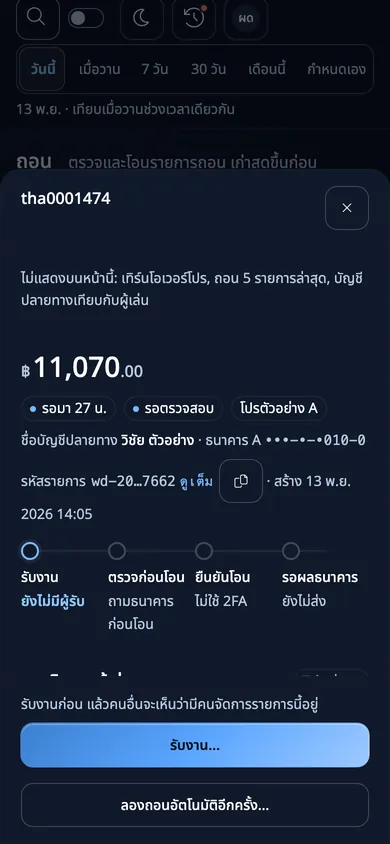
If you approve from a phone, use a device your team trusts, and don't let anyone borrow a device that is still signed in.
Common mistakes of teams new to running a withdrawal queue
This section is general working advice. It applies to any system and isn't a statement of fact about EVOTEX.
- Several people share one account, so you can't look back and see who approved which item
- Trying to send again when the system's answer is unclear, instead of checking with the payment provider
- Handing over a shift without saying which items are still waiting
Checklist before the first shift
- Know who approves withdrawals on each shift
- Agree how to handle money with an unknown result
- Agree who receives the alerts for overdue items
- Try approving one item and rejecting one in the demo first
- Agree who gives the reason to support when an item is rejected
Questions to ask a system vendor
Whatever system you use, try asking these when you request a demo.
- Can you see the pending withdrawals from the first page?
- Can you approve and reject from a single page?
- Is there an extra security step before approval, and is it in use, or only on paper?
- If a money order gets an unclear answer, how does the system stop it being sent again?
- Can you look back and see who approved which item?
Keep reading, depending on what you are doing:
- Want the whole picture of the betting site back office (page in Thai)? See that page
- Preparing to open a brand? Read the launch checklist
- Comparing several systems? Read how to choose a back-office system
- Using another system and thinking of moving? Read migrating your back office
- Want an overview of launching a turnkey betting website with EVOTEX? See the full checklist
- Thinking of building the withdrawal queue yourself instead of using a ready-made system? Read build it yourself or use a ready-made system
Related features
- A one-page withdrawal queue with totals by status sample in the demo
- Approve or reject from the panel beside the row sample in the demo
Related reading
Try the demo
Press approve and reject, and switch to mobile, in the demo back office yourself, with no account
Migrating your back office
A step-by-step checklist for moving from your current system

Request a demo
Try approving or rejecting a withdrawal yourself in the sample-data demo. Contact our team whenever you are ready to talk.