
Setting up promotions step by step: on, off, overlaps, and results
A marketing team wants to open a new promotion today, but has to wait for the technical team to change the system first. This is what often makes campaigns slower than competitors'. This back office comes with the brand's player site in the same package. If you're planning a turnkey betting website, the question to ask is whether your own team can set up, turn on, turn off, and check the results of promotions by themselves. This article answers from the Promotions page of the EVOTEX back office.
Contents
This article covers only the operator's tools. It doesn't invite anyone to play, and it doesn't quote promotion text used to attract players. The labels used: "can be tried in the demo" means you can press it in the demo with sample data, "sample" means there is a page to look at but the numbers are sample data, and "designed, not in the demo" means it is laid out in a design but you can't press it in the demo yet.
Not for: players looking for promotions, and anyone looking for legal advice on running promotions, because this article is written for operators' marketing teams.
What the Promotions page has
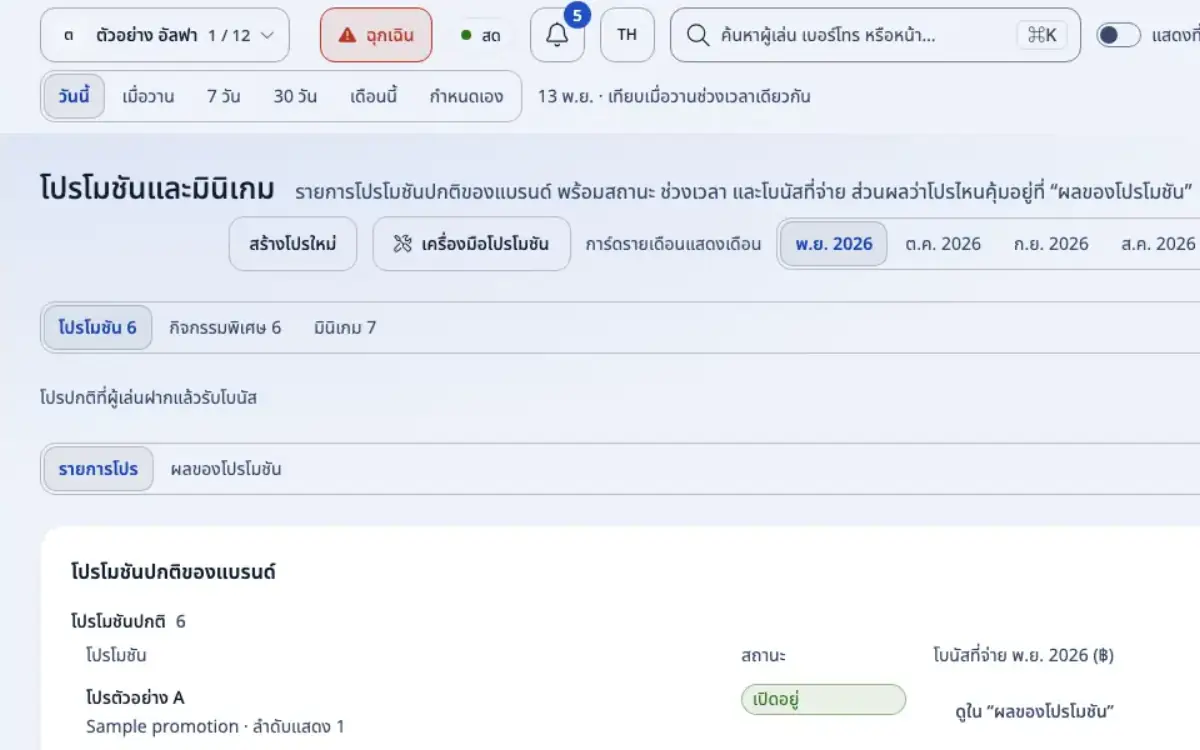
The Promotions page has 3 tabs: Promotions, Rewards awaiting approval, and Rewards in the shop. At the top is a summary of how many promotions are on, how many are off, and how many rewards are waiting for approval.
The Promotions tab is the list of all the brand's promotions (can be tried in the demo):
- An on and off switch sits at the end of each row, and after you press it there is a message that lets you undo right away
- You can filter by status on or off, by promotion type, by whether it shows on the site, by special promotions, and by promotions that have banned players
- A banner warns when promotions overlap, so the team sees in advance that two promotions might clash
The overlap warning banner is worked out only from the type and date range of each promotion. It is a rule of this page and doesn't come from the backend system. The team should use it as a warning signal, not as the final decision.
Setting up a new promotion with a 6-step sheet
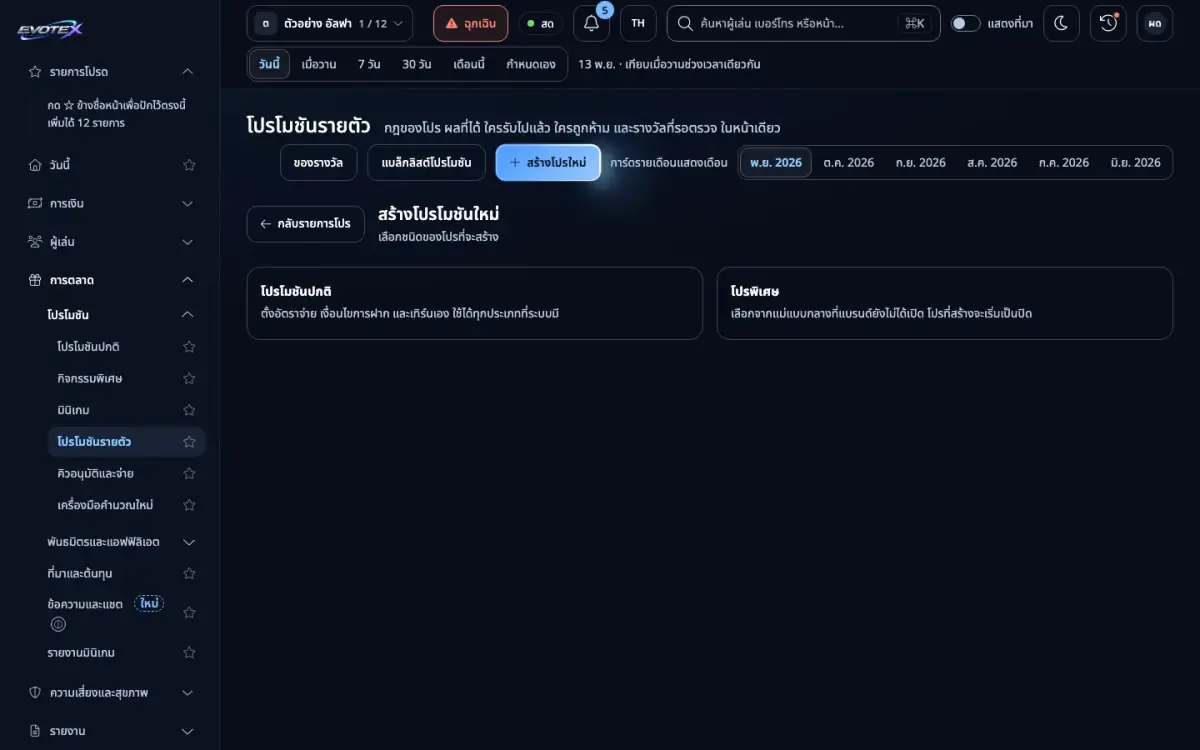
Press create promotion and the screen opens a sheet that splits the work into 6 steps. Each step has one topic, so the team doesn't have to fill in one long form on a single page.
| Step | Step name | What the team sets in this step |
|---|---|---|
| 1 | Type and name | A top-up promotion or a special promotion, the promotion name in Thai and English, the display order |
| 2 | Who gets it, and when | The player group: everyone, ordinary players, or VIP members, limited to a Tier level, the date range, and a daily, monthly, or whole-promotion quota |
| 3 | Bonus and turnover | The minimum deposit, the bonus, and the turnover conditions |
| 4 | Player site | Whether to show this promotion on the site, and the details shown |
| 5 | Advanced | Rarely used fields, and values the API documentation doesn't yet explain the meaning of, so they show as raw values |
| 6 | Review and save | Look at the whole summary once more before you save |
The top-up promotion form has 61 fields, but the sheet shows only some of them depending on the promotion type you choose, so the team doesn't meet every field at once (can be tried in the demo). The last step has a bonus example to look at before saving. This example is calculated in the browser. Part of the base for calculating turnover still has to be confirmed.
If you don't want to set everything up again, there are two shortcuts that save time:
- Start from a central template: when you create a new promotion, the first step has a Start from a template field, which is an option, not required
- Duplicate an old promotion: press duplicate from a promotion you used before, then edit only the parts that differ, such as the name and the date range
Central templates and special promotions
A central template is a ready-made promotion that the platform team maintains for every brand. A brand's team can read it and use it as a starting point, but can't edit the template itself. The demo has 7 sample templates:
- Percentage deposit, the standard kind
- Happy Time, for special time windows
- Fixed free credit
- A restricted promotion that can use a quota
- Free spins, where you must choose the provider and the game
- A random prize draw
- VIP Tier, of which a brand can have 1 set, set up on the Tier menu
Special promotions are another group. The back office's connection specification (API) lists several types, such as the random prize draw, VIP Tier, handing out codes, missions, and jackpots. The promotion editor can choose the type, but the values specific to a special promotion come from the central template and can't be edited on the promotion setup page.
On referring friends and missions, we have to say plainly that the demo doesn't yet have separate screens for these two.
- Referral promotion: the demo's promotion list has an example as a special promotion, and the permission system has a player referral codes menu where you set permission to create and delete codes. A page for managing the codes directly is not in the demo yet
- Missions: a special promotion type that the API documentation lists, but the demo doesn't yet have a page dedicated to setting up missions (designed, not in the demo)
Turn on, turn off, and restrict
Once a promotion is ready, the team can control it at several levels, all on one page.
- Turn the whole promotion on or off: the switch at the end of the row, and after a change there is a message to undo it (can be tried in the demo)
- Show or hide on the player site: separate from turning the promotion on or off. The team sets it in step 4 of the sheet, and can filter by it in the list
- Limit by group and level: everyone, ordinary players, VIP members, or only a Tier level
- Limit the quota: daily, monthly, or for the whole promotion, with a total and a per-player number you can set
- Ban some players from a promotion: add and remove people from a banned list (can be tried in the demo)
- Grant rights or credit person by person: you can do this from the Rights and credit tab in a player profile. If the promotion is off, the system answers that it isn't active yet
For the messages that tell players about a promotion, the back office has a Messages page that sends alerts to web devices, Android, and iOS, sends SMS, schedules in advance, and sends into Telegram (can be tried in the demo. The recipient groups and message templates are samples). Read more in players and communication in the back office
The reward shop and the approval queue
The reward shop is a tool for keeping players with the brand. Players collect points and exchange them for items. The team sets up the items in the shop and approves exchange requests from one page.
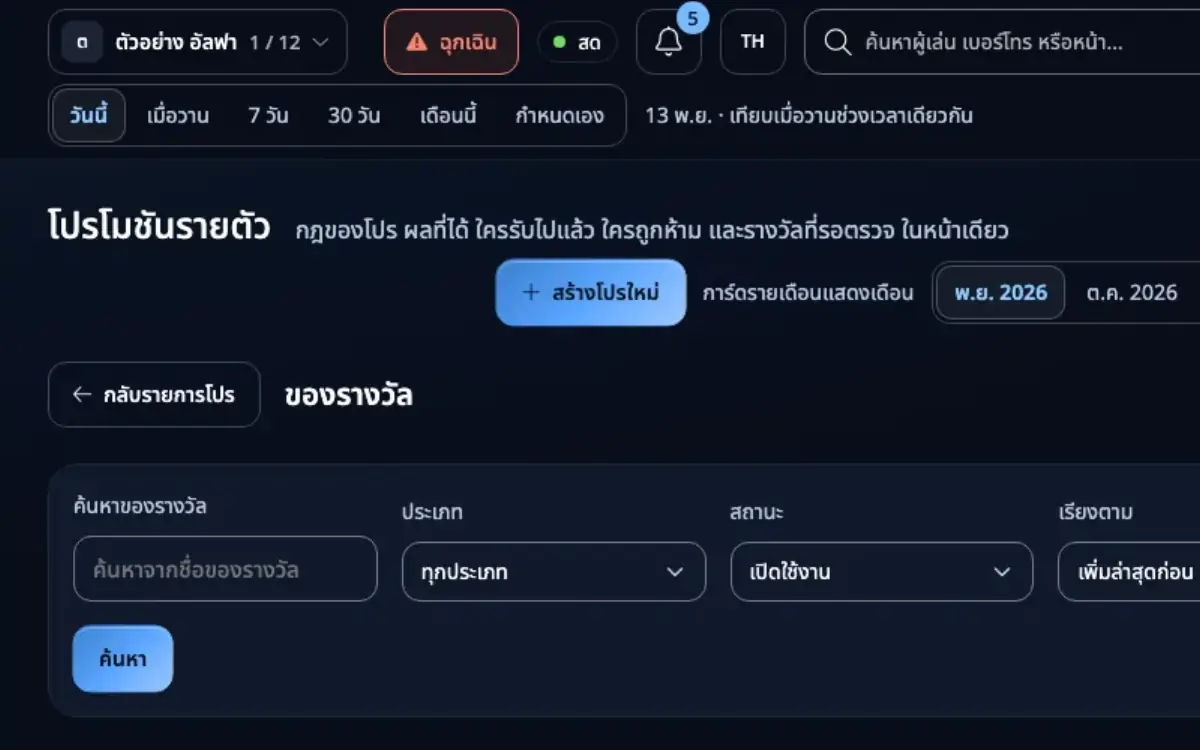
The Rewards in the shop tab (can be tried in the demo):
- Add, edit, and delete rewards. The form has 14 fields
- 8 reward types: lifestyle goods, gadgets, free credit, gold, in-game credit, free spins, mystery boxes, and wheels
- Turn each item on or off, and set the points or credit needed to exchange for it
The Rewards awaiting approval tab:
- See exchange requests one by one, then approve or reject
- Select several items and approve in a batch, and filter to see only items awaiting action or everything
Two things to know. Ask our team about them plainly before real use:
- The exchange request list in the demo is sample data. The API documentation has endpoints to approve and cancel a request, but no endpoint to fetch the list of requests yet
- If you reject a request, the system doesn't return the points to the player automatically. Your team needs its own way to do it
Where to see a promotion's results
A promotion's results are what let you decide to keep going or stop. Here you need to separate clearly what exists already from what is still a sample.
- The promotions report group has 3 types: promotion bonuses paid out, promotion bonuses by VIP tier, and jackpots (sample. The numbers in the demo are sample data, and some report names are still waiting to be confirmed with the real system)
- The Promotions tab on the Player behavior page shows the result of each promotion (sample. This page is labeled as not connected to a live system yet)
- You can export CSV from the reports page (sample)
The number of players who used each promotion in 30 days: the demo shows a sample number in the list, but the real system has no endpoint to count usage per promotion yet. Only promotions with a quota set have a count that the system keeps. So don't use this number in the demo to decide which promotion worked. Ask our team where you will get this number from at setup.
Read about all 20 report types in reports a brand owner should open every day (page in Thai) and see it feature by feature in promotions and rewards
What to ask our team
The demo's promotion editor doesn't have these yet. Ask our team whether, in real use, they are changed in the system or need to be handled another way.
- Can you set a time of day or a day of the week that a promotion applies? Right now you can set only a date range
- Can you set a condition for the first deposit, or for the nth deposit?
- Can you define your own player groups, other than everyone, ordinary, VIP, and Tier?
- Can you set an expiry date for a bonus a player has already received?
- Where are drafts and scheduled publishing of promotions kept? The demo keeps them temporarily in the browser
- Can you try calculating a bonus on the real system before you save? The demo calculates in the browser
- Is there a check for overlapping promotions on the system side? The demo warns only from the type and the date range
- When will a page for managing referral codes and missions exist?
- When you delete a promotion, where is the reason recorded? The system doesn't accept a reason when you delete
Keep reading
- Agents and commissions: the other half of marketing work, paying partners' commissions
- What a back office must have: a 12-point checklist split by role
- Reports a brand owner should open every day (page in Thai): look at promotion results together with the money-in and money-out numbers
- Try the back office with sample data: try the on and off switch and the promotion setup sheet right away, with no sign-up
- Promotions and rewards, feature by feature: see images of each page
Our team's target is to open a new brand within 14 to 21 working days after the scope is agreed. See what the package includes on the packages and pricing page (page in Thai)
Related features
- Set up a promotion in a six-step sheet sample in the demo
Related reading
Agents and commissions
The Partners page is a queue of commission withdrawal requests. Finance pays or rejects each one.
What a back office must have
A good back office gives the owner the whole picture on one page and lets the finance team close money work fast.

Request a demo
Want our team to look at the real thing with you? Request a demo.