
Who sees what in the commission queue, and what to ask before you agree
A site that works through agents has to answer who is an agent, who earns how much commission, and who presses pay. This back office comes with the brand's player site in the same package. If you're planning a turnkey betting website and expect agents or partners to bring in players, these questions become routine work for the finance team. This article explains where the EVOTEX back office helps, and where the demo doesn't have it yet.
Contents
The labels used: "can be tried in the demo" means you can press it in the demo with sample data, "sample" means there is a page to look at but the numbers are sample data, and "designed, not in the demo" means it is laid out in a design but you can't press it in the demo yet.
Not for: individual players looking for a referral link, and anyone who needs a multi-level agent structure system that the demo doesn't have, because this article covers only what the demo can show.
The word agent has two meanings in the back office
The word agent is used loosely in this business. If you can't tell the two apart, you'll end up talking to a vendor about the wrong thing.
- Partner, or a person who brings in players: someone who brings players in and earns commission. In the back office this is the Partners page. Each partner has a partner code and a number of referrals
- Game agent: an agent account used to connect with game providers. In the demo it shows up as a game agent column in the player list, and as a game agent limit that the platform team can read. There is no page for writing limits
This article covers the first meaning: partners and commissions.
The path of a commission, from the request to money going out
In the EVOTEX back office, what the finance team really does is the commission withdrawal queue. This queue works like the players' withdrawal queue: an item comes in, someone reviews it, then pays or rejects it.
| Step | What happens | Who does it |
|---|---|---|
| 1 | A partner requests a commission withdrawal. The item joins the queue, waiting to be paid | Partner |
| 2 | The finance team opens the row to see the details and the notes | Finance team |
| 3 | Pay the commission or reject it. You can pay in a batch | Finance team |
| 4 | The system asks for an OTP before the money goes out | Finance team |
| 5 | The item changes status to paid or rejected, and the name of the person who decided is recorded | System |
Step 1 is on the partner's side. The demo starts the story from an item already in the queue. How commissions are calculated and accumulated before a request is something the demo doesn't yet show you to try. Ask our team.
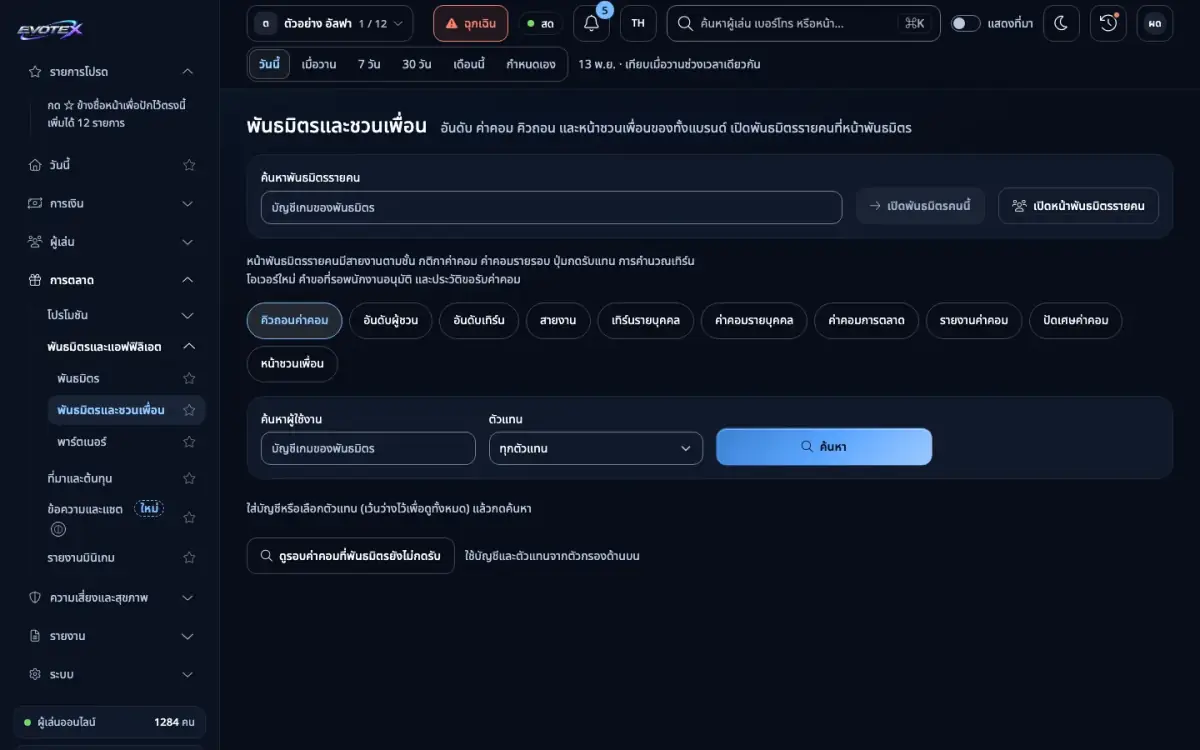
The Partners page, part by part
The Partners page summarizes commission withdrawal requests into 3 statuses: waiting to be paid, paid, and rejected. Each status shows a total (can be tried in the demo, with sample data: 14 items, with 9 waiting to be paid, 3 paid, and 2 rejected).
What the finance team can do on this page:
- Search from the box at the top by name, partner code, or amount
- Filter to only the large amounts, to look at the big ones first
- Filter to only items that have a note
- Select everything that is waiting to be paid, and pay in a batch
- Pay or reject one at a time from the button at the end of the row
- Open a row to see the details in the side panel
The details panel for each item
Click any row and the side panel for that item opens. The panel shows what the finance team needs to decide:
- The partner's name, which you can click to open that person's player profile
- The partner code
- The number of referrals
- The commission amount requested, and the status
- Notes, if any, for example an amount many times higher than the previous request, or an account that was just opened and is requesting its first commission withdrawal
- A Pay commission button with the amount, and a Reject button
The notes save the finance team from having to remember which partner looks unusual. The example notes in the demo are made-up data. For the rule set that creates notes in a real system, ask our team.
Batch payouts and rejections
When many items are waiting to be paid, opening them one at a time takes a long while. The back office lets you gather them and pay in a batch.
- Select everything waiting to be paid, then press pay. The confirmation box summarizes the number of items and the total, with a field to enter an OTP (can be tried in the demo)
- You can pay or reject one at a time from the button at the end of the row, or from the side panel
- An item that has been decided shows who decided and when, so you don't have to look for it elsewhere
One thing to say plainly about batch payouts: the team selects several items and confirms once on screen. The system sends them one by one and shows the result per row. If any item doesn't go through, you see it on that row.
The second point is rejection. In the demo you can press reject, but there is no field to enter a reason in the system. Your team should agree first how to tell the partner the reason.
Who sees what, and who can pay
Commission is money work, so the permission to pay should sit with only a few people on the team. The EVOTEX permission system is set per menu and per action.
The Team and permissions page lets you set permissions for each menu across 7 actions: see the menu, create, edit, delete, approve, export, and view the full number. For the Partners page, that means the team can set separately who can only look, who can press pay, and who can export the list (can be tried in the demo). You can choose the scope of a role as one brand, several brands, or more.
An example split that most teams use, as general advice and not the EVOTEX default:
| Role | What it should do on the Partners page |
|---|---|
| Brand owner | Look at the overview and totals. Doesn't need to press pay personally |
| Finance team | Review, pay, and reject |
| Manager | See the items and notes. Doesn't hold the permission to pay |
| Support | Doesn't need to see the commission amounts. Answers partners from what the finance team tells them |
In the demo, the side menu isn't hidden by role. The sample finance account sees the full menu like an owner. Limiting what each person sees is the job of the real back office system, so ask our team to demonstrate whether an account with one role sees the Partners page.
Where to see the overview of partners
Besides the payment queue, the back office has several places to see the overall picture of partners.
- Partner group report: there are 2 types, commission by partner and daily commission. You can export as CSV (sample. The numbers in the demo are sample data, and the name of the daily commission report is still waiting to be confirmed with the real system)
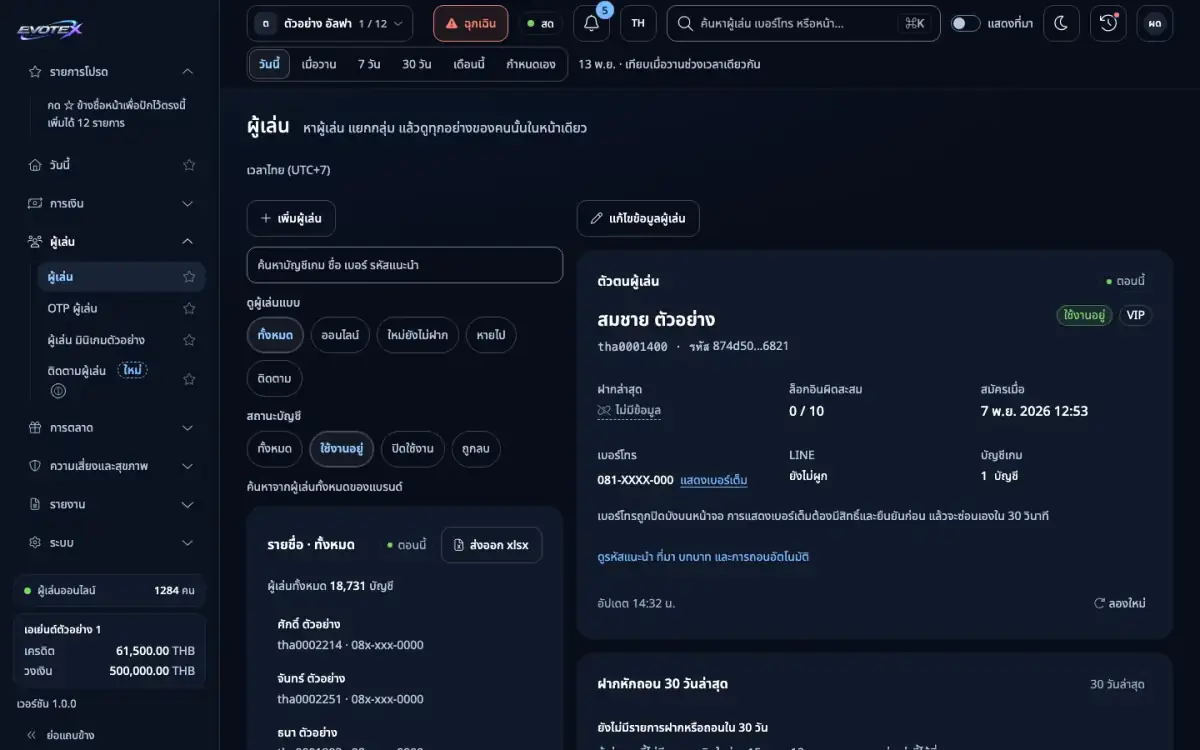
- Player profile: a partner is also a player, so you can open their money history from the Partners page
- Player list: the add player form has a field for the referrer's referral code, and a source option of friend referral (can be tried in the demo)
- Permission system: there is a menu for player referral codes where you set permission to create and delete codes (can be tried in the demo, but there is no page for managing the codes directly yet)
For promotions that bring people in by referring friends, read promotions in the back office
What the demo doesn't have yet
So that no one thinks the agent system is complete in every part, here is what the demo doesn't have yet.
| Topic | Status in the demo | What to ask |
|---|---|---|
| A page to manage the structure of partners and sub-agents | No page | How many levels does the structure have, and who sees whom? |
| Setting commission rates | No page | Where are rates set, and what are they based on? |
| Free credit from referring friends, and recalculating turnover | designed, not in the demo. It is in the API documentation but has no page | When can it be used? |
| Cancelling a commission statement that was calculated wrong | designed, not in the demo. It is in the API documentation but has no page | Can the finance team do it themselves? |
| Moving the agent structure from your old system | This is work for our team, not a feature | What data can be moved? |
What to ask our team
This page can't confirm these things, so ask during your demo call.
- Where do partners request a commission withdrawal, where do they see their own accumulated commission, and how are they told once it is paid?
- How are commission rates set, and can you change a rate retroactively?
- Are there partner tiers? If so, what are the names and conditions of each tier? This page names no tiers, because the demo has none
- Where are the thresholds for creating notes set, and can you adjust them yourself?
- In the real system, does an account with a finance role see the Partners page?
- If you move from another system, how much of the agent structure and commission history can move over? See an example of the steps in migrating your old back office
- If commission is paid through another channel outside the back office, how is it recorded back into the system?
Keep reading
- Promotions in the back office: the marketing side that works alongside partners
- What a back office must have: a 12-point checklist split by role
- The EVOTEX agent system: a summary of what can be confirmed right now
- Agents and partners, feature by feature: see images of the agent work page by page
- Try the back office with sample data: open the Partners page and try paying and rejecting yourself
Our team's target is to open a new brand within 14 to 21 working days after the scope is agreed. See what the package includes on the packages and pricing page (page in Thai)
Related features
- The commission queue: waiting, paid, rejected sample in the demo
- A player profile with seven tabs sample in the demo
Related reading
Promotions in the back office
Your marketing team can set up promotions with a 6-step sheet, start from a central template or duplicate an old one, and switch it on and off at the end of the row.
What a back office must have
A good back office gives the owner the whole picture on one page and lets the finance team close money work fast.
Migrating your back office
A step-by-step checklist for moving from your current system

Request a demo
Want our team to look at the real thing with you? Request a demo.