
The back office on mobile at 390 px: withdrawals and daily work
Finance and brand owners don't sit at a computer all day. Sometimes they have to answer a withdrawal from a phone. So anyone preparing a turnkey betting website should try the back office on a small screen before buying, not just look at pictures on a computer. This article walks through the EVOTEX back office at 390 px, a common phone screen size, with the steps to approve a withdrawal from a phone.
Contents
Every image comes from the demo with sample data, and isn't data from a real brand. The labels used: "can be tried in the demo" means you can press it in the demo, and "sample" means there is a page to look at but the numbers are simulated.
Not for: people looking for a mobile app installed from an app store, because this demo is used through a browser, and individual players, because this article is about the back office for operators' teams.
Why try it on a 390 px screen
390 px is the width of the screen in pixels for a commonly used size of phone. At this width, a table with many columns gets too crowded, so a page that looks good on a computer often becomes a page that is easy to mis-tap on a phone.
The EVOTEX back office team set a design rule that every page must work at 390 px, and rows you can tap must be tall enough for a finger. This rule applies to all 27 pages in the demo, not only the Withdrawals page.
If you want to try it yourself, the demo page has a Mobile 390 px button. Press it and the page switches to a mobile view. If you are already on a phone, press to open it full screen. See try the back office with sample data. The same page has a short video with no sound, about 1 minute 19 seconds long, that records a withdrawal approval on a 390 px screen.
What changes on a small screen
The back office doesn't just shrink the page. It rearranges the work to suit a thumb.
| Part of the page | On a computer | On a 390 px phone |
|---|---|---|
| List table | Many columns | Stacked cards, with the name and amount on the first line |
| Details panel | A side panel | A sheet that slides up from the bottom of the screen |
| Menu | The side menu is always open | A hamburger button that opens the menu |
| Chat | The room list and messages side by side | Two screens that switch back and forth |
| Main button | Several buttons in one bar | One main button per page |
| Scrolling | Scroll up and down | Scroll up and down only, with no sideways scrolling |
What is still fully there on a phone:
- The warning strip at the top that says how many withdrawals are waiting and how long the longest has waited, with a link to the queue
- The search box, the light and dark mode switch, and the alert bell
- The same date range selector as on a computer
- Every page has four states: empty, loading, error, and offline
Approving a withdrawal from a phone, step by step
You can try these steps in the demo. The data is sample data. The order is the same as in the video on the demo page.
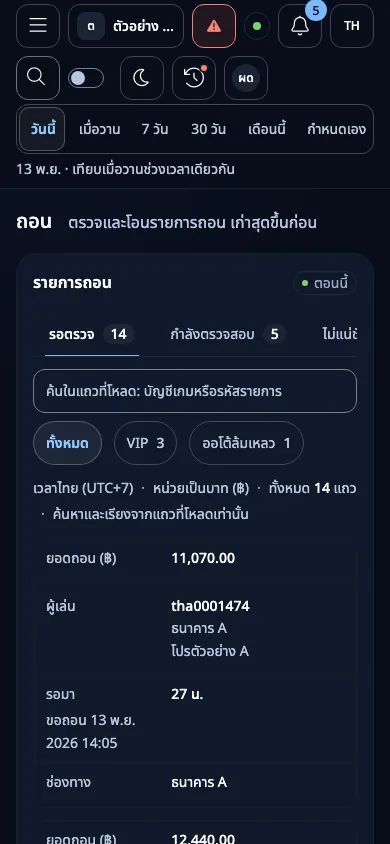
- Open the Today page, or tap the Go to the queue link in the orange warning strip at the top
- On the Withdrawals page, look at the three summary boxes at the top: ready, awaiting review, and claimed. Each box has a number of items and a total
- Choose to see only what you need with a filter, for example an amount of 20,000 or more, or has a warning signal
- Switch the table to cards if you want, then tap an item to open its details from the bottom of the screen. The account number in this sheet is partly masked
- Press review to claim the item, then press approve
- Read the confirmation box, which gives the amount, the player, and the account, with a warning that the money is sent right away and can't be undone
- Enter the 6-digit OTP and press confirm. In the demo you can enter any 6 digits except 000000
- See the result shown in the same item
If you have to approve several items, the Select all ready button selects only the items that are ready for a decision, then you approve in a run. The system sends the orders one by one and shows the result per row. It isn't one command that sends the whole batch. The finance team's full steps are in how the withdrawal queue works
We don't give a number of clicks or seconds for this procedure on a phone, because the numbers the back office team recorded were counted by an automated test suite, not on a real phone screen.
Other work on a phone, besides approving withdrawals
The demo has a mobile view of eight pages. This table says what each page is used for.
| Page | What you use it for on a phone | What you see in the demo's mobile image |
|---|---|---|
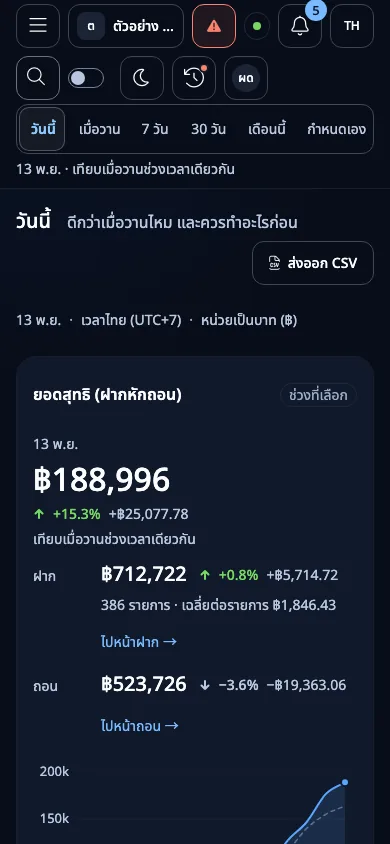
| Today | Read the net, compare with yesterday, go approve withdrawals, export CSV | A large net figure, the go approve withdrawals button, and the export CSV button |
| Withdrawals | Review and approve withdrawals | The summary boxes in three groups, and the select all ready button |
| Deposits | Look at deposits, make a manual top-up | The manual top-up button, and the filters for automatic and manual top-up |
| Players | Search for players, use saved filters | The search box, the filter strip, and the add player button |
| Promotions | See the promotions that are on, create a new one | A summary of on and off, and the create promotion button |
| Chat | Answer LINE chats | The room list, and the reply to the person who has waited longest button |
| Reports | Choose a report from 20 types | The report search box, the date range selector, and the export CSV button |
| Executive summary | See the result for 3 periods, and pass it on as a file | The card for today, and the export CSV button |
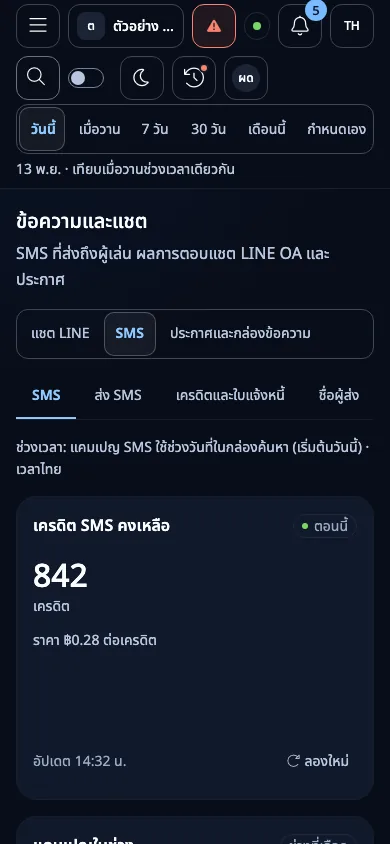
For support, the Chat page on a phone is two screens that switch. The first is the room list, with a Reply to the person who has waited longest button that opens the room that has waited longest right away. Tap a room to go in, read, and reply.
Using it comfortably on a phone: advice for your team
This section is general advice, not an EVOTEX requirement.
- Agree within the team first who can approve withdrawals from a phone, and when. This is the brand's policy and doesn't depend on the system
- Before you press confirm, read the amount and the player's name in the confirmation box once more. On a small screen, numbers are easier to misread
- Lock the phone's screen with the device's own code, because the back office can stay open in the browser
- Use light or dark mode according to the light you find easiest to read in. The back office has both modes, and a follow the device setting
- Try it in the demo on your team's phones before real use day. Have each role try its own work
On back office colors: the demo has 4 color sets: sea green, gold, orange, and a custom one. Every set has light, dark, and follow-the-device modes. You can adjust them yourself on the back office colors page. The choice is kept in that device's browser. It isn't a setting for the whole brand. The player site's colors are a separate matter. See adapting your player site to your brand in 7 working days
What has been checked and what hasn't
This needs to be said plainly, because mobile is a topic where many vendors can easily overstate.
What has been checked:
- Every page was checked in a browser at 390 px wide
- Checked with an automated accessibility tool, at both 1440 px and 390 px
- No sideways scrollbar was seen on the main pages
What hasn't been checked:
- Real iOS and Android devices
- A real screen reader
- Real use on a mobile network with an unstable signal
A browser check isn't the same as use on a real device. If the phones your team uses aren't a common model, try the demo on that device before you agree the scope.
What to ask our team
This page can't confirm these things, so ask when you agree the scope.
- Is there a plan to test on real iOS and Android devices before launch day, and how can our team help test?
- By which route do long-wait withdrawal alerts reach the finance team's phones, because in the demo they are a simulated sample?
- Can approving withdrawals from a phone be set for only some roles?
- If the connection drops while you press approve, how does the system show the result, and can you press again?
- If you want an app installed on a phone, is there one, and is it in our team's plan?
- For pages the demo has no mobile image of, such as history and security, are they fully usable on a phone?
Keep reading
- A day for the owner, finance, and support: the same work on a big screen
- How the withdrawal queue works: the finance team's steps, one at a time
- What a back office must have: a 12-point checklist split by role
- Adapting your player site to your brand in 7 working days: the player site's colors differ from the back office's colors
- The betting site back office (page in Thai): an overview of all the menus
- Try the back office with sample data: press the 390 px mobile button and try it right away, with no sign-up
Our team's target is to open a new brand within 14 to 21 working days after the scope is agreed. See what the package includes on the packages and pricing page (page in Thai)
Related features
- Approve withdrawals from a phone sample in the demo
- See today's numbers on a phone sample in the demo
Related reading
A day for the owner, finance team, and support
The owner opens the Today page and sees net, deposits, withdrawals, new members, and pending withdrawals on one page.
How the withdrawal queue works
The finance team's order of work
What a back office must have
A good back office gives the owner the whole picture on one page and lets the finance team close money work fast.

Request a demo
Want our team to look at the real thing with you? Request a demo.