
Back office security: what the demo shows, and what is still designed
Back office security can be told two ways. The first is a list of prohibitions. The second says what the team gets to see, and how you trace back when something unusual happens. The back office discussed here comes with the brand's player site in the same package. Anyone planning a turnkey betting website should ask the second kind. This article follows the screens in the EVOTEX demo, and separates clearly what you can press now from what is still designed, not in the demo.
Contents
One thing to say up front: we have no certification or external audit result to cite. This article covers only what you can see in the demo. The labels used: "can be tried in the demo" means you can press it in the demo with sample data, "sample" means there is a page to look at but it is still simulated, and "designed, not in the demo" means it is laid out in a design but you can't press it in the demo yet.
Not for: people looking for a standards certificate or an external audit report, and people looking for legal advice, because this article covers only features you can check in the demo.
How to read this article
This article splits every topic into three levels, so you can compare with other vendors on the same terms.
| Level | What it means | Can you check it yourself? |
|---|---|---|
| Can be tried in the demo | The page and buttons work fully in the demo with sample data | Yes. Open the demo and press it |
| Sample | There is a screen, but the numbers or results are simulated | You can look, but it isn't a real result yet |
| designed, not in the demo | It is written in the system's API contract document or laid out in a design, and there is no page to press yet | Not yet. Ask our team |
What we haven't checked, and don't say we have:
- We haven't tested on real iOS and Android devices, and we haven't tested with a real screen reader
- The demo has never called any brand's live system, so rules that depend on the backend systems haven't been tried with real money
- There is no external audit result and no certification
History: your team sees who did what, and when
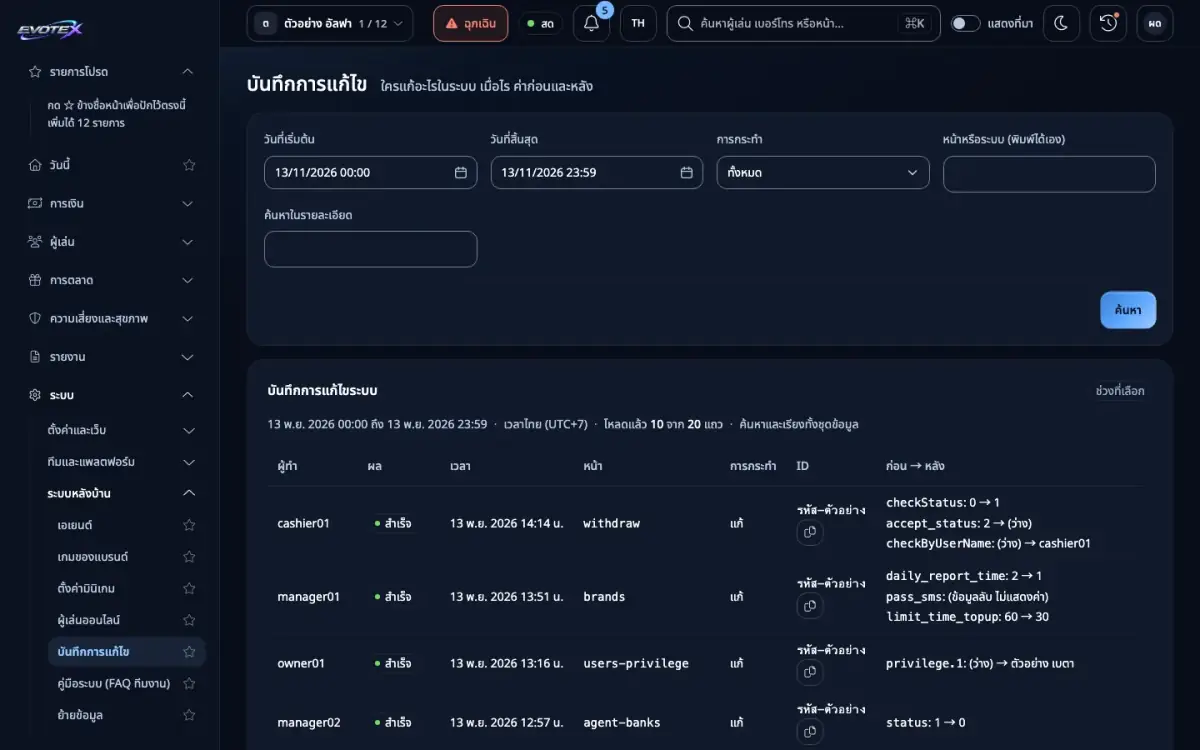
What the team uses every day is the history and security page. The first tab, called who did what, is a record of every action by everyone on the team (can be tried in the demo).
The demo has 34 sample items from 4 people, and 6 of them are failed items. What this page can do:
- Search by the name of the person, an item code, or a username
- Filter by what was done, topic, decision result, and date range (today, 7 days, 30 days, or custom), and filter to only failed or rejected items
- Click a row to open a details panel, which shows the closing result, the error code, and the values that were changed, with a link to that item
- Export as a CSV file
- The full IP of each item is visible when you have permission to see IPs. If you don't, the system shows a partly masked IP
The Sign-ins tab lists sign-in attempts: whether someone tried guessing usernames that aren't accounts on the team, and which accounts are temporarily locked. The button to unlock an account after wrong passwords on this page is designed, not in the demo, and doesn't send a real command yet. Ask our team how unlocking works in real use.
To be complete: the system counts only presses of approve, export, or edit values. There is no record yet of who opened which page. If your team needs a record of page views, ask our team first.
Sign-in and OTP: the points where the system asks for an extra code
Signing in has two steps: a password, then a 6-digit OTP. The sign-in page in the demo is a sample. It sends nothing to a server, and the screen says so itself. In the demo you can enter any 6 digits except 000000, which is there so you can see what a wrong code looks like. After 3 wrong codes it locks for 30 seconds. That rule is a demo setting, so ask our team for the real numbers.
Once signed in, money work and work that affects the whole brand asks for an OTP again at the point of decision. In the demo you see it at these points (can be tried in the demo):
- Approving a withdrawal, and closing money with an unknown result
- Cancelling a deposit, and a manual top-up
- Paying a partner's commission
- Adding or moving a domain, and topping up a partner provider's credit
- Cancelling or refunding credit for an SMS campaign
- Closing the whole brand in an emergency
Good to know: in the demo, the approval box has an OTP field every time. There is no setting to turn the OTP on or off per brand. Which points need an OTP is decided by the backend system. If you want some roles to use an OTP differently from other roles, ask our team.
Other rules written in the system's API contract document, such as a longest session of 12 hours, a timeout after more than 120 minutes of inactivity, and tying a session to the IP it signed in from, are all designed, not in the demo. The demo has no page for them.
Player data is partly masked, and permissions can be set in fine detail
The data the team needs can be opened, but it isn't laid out to show in full everywhere. A phone number appears in the form 081-xxx-4821 and an account number as xxx-x-x6350-x everywhere they appear. Viewing the full number needs the view full number permission, and exporting data has its own separate permission (can be tried in the demo).
Permissions can be set in fine detail on the Team and permissions page:
- The permission table covers 41 menus and 7 actions: see the menu, create, edit, delete, approve, export, and view the full number
- 10 standard roles, and roles that a group can create itself
- The role editor says why when a permission can't be granted, for example you can grant only the permissions you hold yourself
- Role assignment lets you choose the scope, from one brand to all groups. See managing several brands in one back office
Good to know: in the demo, the side menu is still the same for every account at the same level. Hiding menus by real role is set at setup. The two-step verification status and the last-used time of members on the Team and permissions page are a sample. Read more about how work is split in team and permissions, feature by feature
Allowed IPs and the emergency button
These two are on the same page as the history. They are tools the admin has for when they are needed, not for every day.
The Allowed IPs tab lets the admin set which IPs can enter the back office (can be tried in the demo):
- Add, turn on or off, and delete entries. Both IPv4 and IPv6 are supported
- Ranges such as /24 aren't accepted. You have to enter one IP at a time
- There is an Allow this IP button for the machine you're using, and a label that shows which entry is the current IP
- If you enter 0.0.0.0, which means every IP can enter, you have to tick a confirmation first
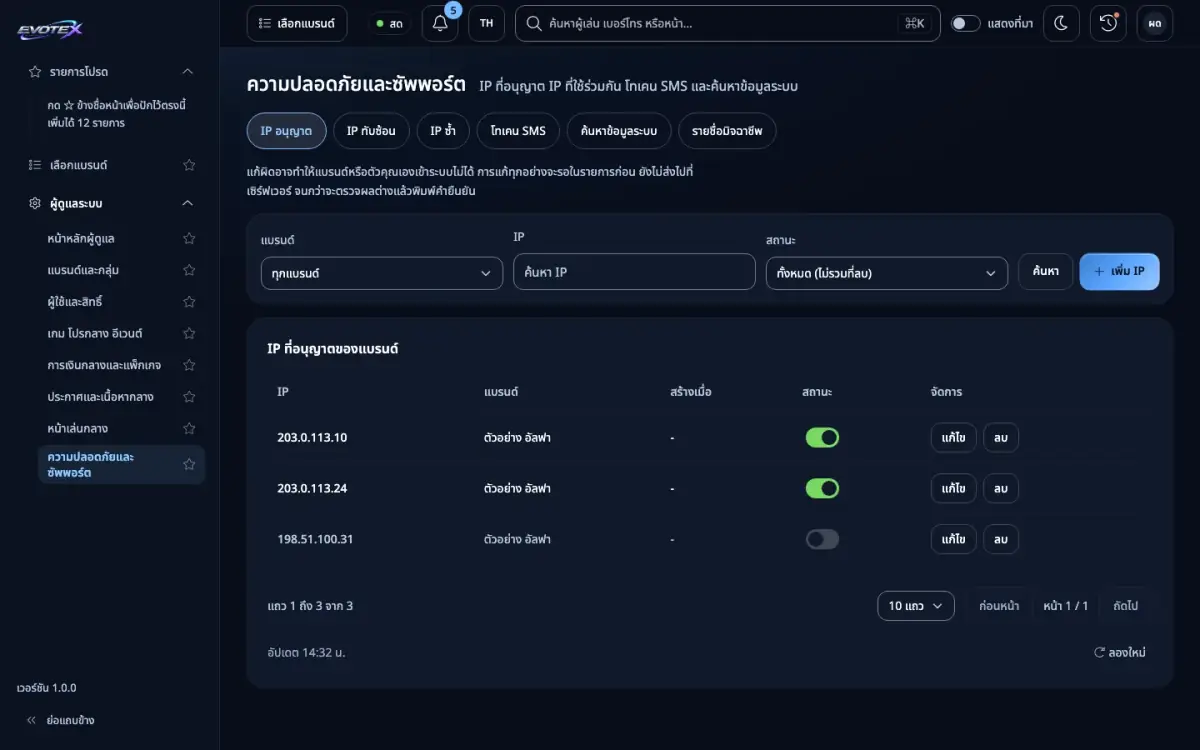
The demo uses 4 of 5 entries. How many you can add depends on the size of the brand. Ask our team for the real cap in the package.
The Emergency button tab has a Close workplace button, for when you suspect someone is signing in on behalf of the team, for example a lost device or a leaked password.
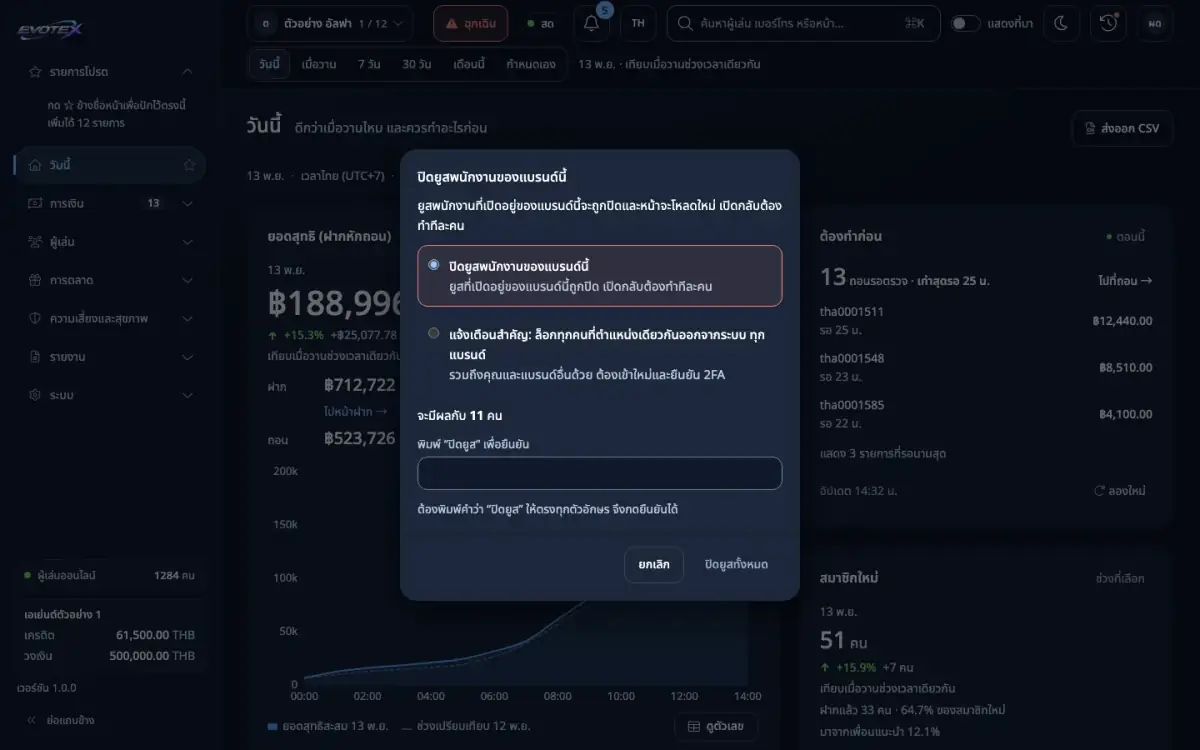
That page explains the effect of the button plainly:
- Everyone in the same workplace is signed out and can't sign in again until someone unlocks it
- The button signs out the people on the team. It doesn't close deposits and withdrawals for the whole brand
- The owner account can't press this button. It is for staff at a level below the owner
If the owner needs to stop money work for the whole brand, use the Close whole brand switch on the Settings page. It stops automatic deposits, withdrawals, and amount deductions at once. It needs an OTP and a typed confirmation. Once closed, a banner saying the brand is closed shows on every page involved (can be tried in the demo). As for the Close workplace command on this page, the screen is complete, but it has never sent a real command. Ask our team how they would test it for you.
Summary table: what can be tried, and what is still designed, not in the demo
| Topic | What the team gets | In the demo |
|---|---|---|
| History of who did what | Trace back when an item looks unusual | Can be tried in the demo |
| Export history as CSV | Take it outside the system to check further | Can be tried in the demo |
| OTP at money decision points | Confirm before money goes out | Can be tried in the demo |
| Partly masked phone and account numbers | Player data isn't shown in full everywhere | Can be tried in the demo |
| Permissions: 41 menus, 7 actions | Split work by role | Can be tried in the demo |
| Allowed IPs | Limit the machines that can enter the back office | Can be tried in the demo |
| Close whole brand | Stop money work in an emergency | Can be tried in the demo |
| Close workplace | Sign the team out when you suspect an account leaked | The screen is complete. It has never sent a real command |
| Unlock accounts with wrong passwords | An admin can unlock them | designed, not in the demo |
| Session length and tying it to an IP | A session expires by itself over time | designed, not in the demo |
| 2FA status and last used of members | See who hasn't turned it on | Sample |
| A record of page views | Know who opened which page | Not available yet |
What is still designed, not in the demo, and what we haven't checked
Things to ask about plainly before you compare with other vendors:
- The backend system's rules written in the contract document, such as session length, tying to an IP, and locking after repeated wrong 2FA codes, haven't been tried on a real system
- The demo has no real data, and it wasn't tested with real money
- Screen testing was done in a browser. It doesn't yet cover real phones and real screen readers
- How data is stored and protected on the server side isn't part of what this demo shows
This article doesn't confirm that the system meets any standard or any authority's requirements. If your market has requirements about this, talk to your own legal adviser and your own security adviser.
What to ask our team
This page can't confirm these things, so ask when you agree the scope.
- In real use, which points need an OTP, and can it be set differently by role?
- What are the session length, tying to an IP, and the lock after wrong codes set to, and can they be changed?
- How do you unlock an account with wrong passwords, and who can do it?
- How long is the history kept, and how far back can you export?
- Can a record of page views be added, and does it cost anything?
- What is the package's cap on allowed IPs?
- How can you test the Close workplace button and the Close whole brand switch for me on a real system?
- Where is the brand's data stored, and can it be exported when you stop using the system?
Keep reading
- How the withdrawal queue works: the approval step that uses an OTP, step by step
- 10 questions for system vendors before you buy: use them to ask every vendor about history and permissions
- What a back office must have: a 12-point checklist split by role
- Our strengths (page in Thai): what our team says it can do
- Try the back office with sample data: press through the history and security page yourself, with no sign-up
Our team's target is to open a new brand within 14 to 21 working days after the scope is agreed. See what the package includes on the packages and pricing page (page in Thai)
Related features
- A history of who did what, searchable and exportable to CSV sample in the demo
Related reading
How the withdrawal queue works
The finance team's order of work
10 questions for system vendors before you buy
A good question is one you can check. Ask to try the real thing in the demo instead of listening to an explanation, and note which parts the vendor says are still a sample.
What a back office must have
A good back office gives the owner the whole picture on one page and lets the finance team close money work fast.

Request a demo
Want our team to look at the real thing with you? Request a demo.